
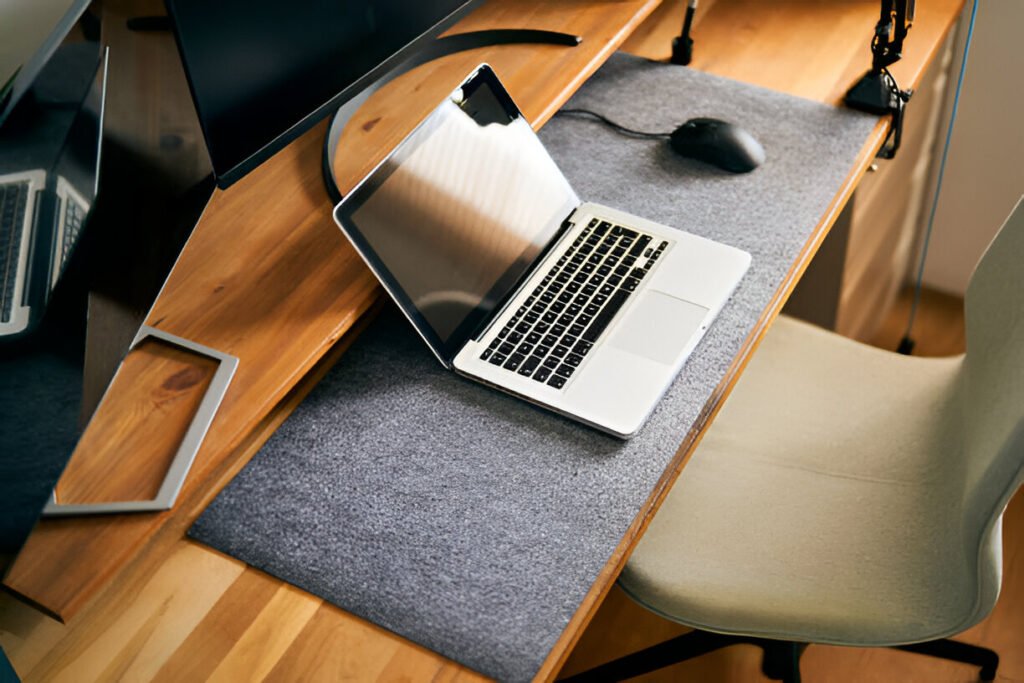
Your home office setup directly affects how much work you actually get done. With remote work and studying from home now part of everyday life, establishing a dedicated workspace can help you feel more in control and stay productive.
Focus comes more easily when your workspace minimises distractions, helping you stay on task.
This guide walks you through building a home office that supports deep work, emphasising organisation and personalisation to boost your motivation and focus.
Key Takeaways:
- Home office satisfaction correlates with productivity and reduced burnout
- Ergonomic furniture prevents strain that destroys focus
- Proper lighting reduces eye strain and maintains alertness
- Strategic placement eliminates workflow friction
- Small layout decisions compound into significant gains
What Is a Home Office Productivity Setup?
A home office productivity setup is the physical arrangement of furniture, equipment, and environmental factors that makes sustained focus easier.
It includes essentials like your chair, desk, monitors, lighting, and noise control, all positioned to support extended periods of concentration without causing physical strain.
While the setup itself does not create motivation, a poorly arranged workspace introduces small obstacles that quietly drain focus over time.
A well-designed setup removes those barriers, allowing you to sit down and start working immediately, with everything you need within reach and distractions kept out of the way.
What Makes a Home Office Truly Productive
Productivity vs Aesthetics: Clarifying Priorities
A productive home office isn’t the one that looks best on Instagram. It’s the one where you can sit down and get to work right away without your setup slowing you down.
Appearance matters, but only after you get the basics right. Your desk should support real work, not just clean photos. Your chair should keep you comfortable for hours, not just match the room.
Research shows that proper lighting not only reduces eye strain but also helps maintain alertness, directly supporting sustained focus during work or study.
The message is clear. How your workspace is set up has a real effect on your ability to focus and perform over time.
Ergonomics, Focus, and Workflow Efficiency Explained
A well-designed workspace fits your body rather than forcing it to adjust. That’s all ergonomics really means.
When your setup clashes with natural posture, you burn energy just trying to stay comfortable, which quietly drains focus from real work.
Distractions aren’t the only thing that breaks concentration. Cognitive load also plays a significant role. This is the mental effort required to navigate and use your workspace.
Each awkward reach or unnecessary adjustment pulls attention away from the task you’re trying to finish.
Friction disappears when the workflow is properly configured, making it easier to stay focused and productive throughout your work session.
With monitors positioned correctly, you can reference documents while typing and stay focused on the work instead of managing your setup.
Non-negotiable productivity principles:
- [ ] Neutral posture reduces physical fatigue
- [ ] Eye-level screens prevent neck strain
- [ ] Proper lighting eliminates productivity-ending headaches
- [ ] Strategic layout keeps tools within arm’s reach
Where Should You Set Up Your Home Office?
Dedicated Room vs Shared Space vs Bedroom Setup
Having a dedicated room gives you the clearest separation between work and life. Closing the door tells your brain it’s time to focus. The catch is that most people simply don’t have an extra room to turn into an office.
You can make shared spaces work by setting boundaries. A living room corner becomes your office when you sit down and reverts to its original use when you step away. It takes discipline, but it makes the most of limited space.
Bedrooms are trickier. Since your brain associates the room with sleep, mixing work and rest can weaken both.
If you have no other option, use a room divider or position your desk away from the bed to keep work and rest distinct.
How Do Light, Noise, and Privacy Affect Your Productivity?
Sunlight can boost your energy and reduce eye strain, but where you place your desk affects how well it works.
Sit perpendicular to a window so light hits from the side, and avoid putting your monitor directly in front of or behind the window to prevent glare and backlighting during calls.
You don’t need total silence to focus, but unpredictable noises like conversations or door slams will break your concentration.
When you can’t control the sounds around you, noise-cancelling headphones make a big difference.
Privacy matters, too, especially for calls or sensitive work. Even in a shared space, a bookshelf or simple divider can create some visual separation.
Workspace Types Overview
| Space Type | Pros | Cons | Best For |
| Dedicated room | Provides mental separation and blocks noise | Needs extra space, can feel isolated | Full-time remote workers |
| Shared space | Flexible, uses space efficiently | Can be distracting, requires clear boundaries | Hybrid workers |
| Bedroom setup | Works without extra space | Can disrupt sleep, with weak separation between work and rest | Students, temporary remote workers |
Essential Furniture for a High-Productivity Home Office
Desk Size and Surface Area
Measure everything you use every day, like your laptop, monitor, notebook, and coffee, and then add about 20% extra space so your desk doesn’t feel crowded.
A desk that’s too big invites clutter, while one that’s too small forces you to stack things, making the space look messy.
Most desks work well at 60–75 cm deep, but if you use dual monitors or need space for reference materials, go deeper.
Fixed Desk vs Adjustable Desk
Adjustable standing desks can help you stay energised in the afternoon, but only if you alternate between sitting and standing every 60–90 minutes and standing in one spot all day tyres you out just like sitting does.
Fixed desks work fine too, as long as you take regular movement breaks. They cost less, and you can use the savings to get a better chair that keeps you comfortable and supported.
Lumbar Support and Posture Alignment
Your chair has a bigger impact on your productivity than any other piece of furniture. A bad chair can cause back pain, then neck pain, and, before you know it, shorten your workday.
Lumbar support matters during long work sessions. Chairs like the Steelcase Gesture get praised again and again because they prevent the kind of back pain that drains focus before you even notice it.
Many people treat buying a chair like buying a mattress—you’re spending a similar amount of time in it, so it’s worth investing.
Set your seat so your feet rest flat on the floor and your knees sit at a 90-degree angle. If the chair doesn’t go low enough, use a footrest.
If it doesn’t go high enough, get a different chair. Make sure the armrests support your forearms without forcing your shoulders up.
What Storage Solutions Actually Reduce Mental Clutter?
Keep the things you use every day within easy reach, store weekly items in drawers, and move anything you only need monthly out of your office.
It doesn’t matter exactly how you organise. Storage solutions such as filing cabinets, organisers, or floating shelves all work as long as they keep your workspace clear without hiding what you need.
Whiteboards help you see your plan while you work. Wipe the board clean on Fridays and list next week’s priorities.
Many people find this physical reset more effective than digital task managers, and clearing completed items gives a stronger sense of closure than just checking boxes on a screen.
Desk-sized whiteboards are effective for daily priorities, helping you track tasks visually and stay motivated.
Avoid furniture mistakes that make you work harder, such as chairs without adjustable lumbar support, desks that are too shallow for your monitors, missing footrests when the chair doesn’t match your height, and storage placed too far from your workspace.
Technology and Equipment Setup for Maximum Efficiency
Single vs Dual Monitor Productivity Tradeoffs
Research from the University of Utah and Dell shows that using dual monitors can boost productivity by 44% for text-heavy work and 29% for spreadsheets.
They work best when you’re constantly referencing one source while working in another, which is why developers and data analysts see the biggest gains.
Some people who mainly work with wide spreadsheets swap dual 24-inch monitors for a single 42-inch display.
This removes the gap between screens while keeping everything fully visible. Two monitors also reduce window switching by about 15%, which adds up quickly over the day.
Single monitors are better suited to deep-focus tasks. Writers drafting articles, designers working on one project at a time, or anyone trying to stay distraction-free often find dual screens more tempting than helpful.
If you use dual monitors, ensure they match in size and resolution. Mismatched screens create visual distractions and defeat the purpose of having two monitors.
Screen Height and Distance Guidelines
Set your monitor so the top edge sits at or just below your eye level. This keeps your neck in a neutral position and prevents strain from looking up or down all day.
Keep the screen about 50–70 cm away, roughly an arm’s length. If it’s too close, your eyes will strain. If it’s too far away, you’ll lean forward, which puts strain on your posture.
If you use dual monitors, angle them slightly inward so you’re not constantly turning your head, and ensure the centre of your main screen lines up with your body’s centre.
How Do You Position Keyboards and Mice for Ergonomics?
Keep your keyboard and mouse close so your elbows stay near your sides. Repeatedly reaching forward puts your shoulders under tension over time.
Keep your wrists neutral, not bent in any direction. If you experience wrist pain, switch to a split keyboard or an ergonomic mouse before it becomes a long-term problem.
What Technology Infrastructure Does Your Home Office Need?
Slow internet reduces productivity with constant interruptions. If your Wi-Fi drops often or video calls freeze, plug your desk directly into an Ethernet cable. A steady connection matters more than raw speed when you want to get work done.
Make sure your power strips have enough outlets for everything without daisy-chaining. Overloaded strips are a fire hazard and just add clutter.
Cable management isn’t just about looks. Tangled cables distract and make it harder to adjust your setup. Use clips, sleeves, or even simple zip ties to keep everything organised.
Here’s a quick guide to essential and optional tech for different users:
| User Type | Essential Tech | Optional Tech |
| Remote worker | Reliable laptop or desktop, webcam, headset, stable internet | Dual monitors, mechanical keyboard, ergonomic mouse |
| Student | Computer, note-taking device, desk lamp | Tablet, scanner, external hard drive |
| Content creator | High-performance computer, quality monitor, and external storage | Dual monitors, graphics tablet, studio microphone |
Lighting Setup That Improves Focus and Reduces Eye Strain
How Do You Position Your Desk for Optimal Natural Light?
Natural light lifts your mood, reduces eye strain, and keeps your circadian rhythm on track. Direct sunlight, though, can create glare on your screen and make it hard to see.
Set your desk perpendicular to windows so the light hits from the side without causing glare. If you have to face the window, put up sheer curtains to diffuse the light. If the window is behind you, your video calls will be affected by backlighting.
Artificial Lighting Types and Placement
Task Lighting
Brighten your immediate workspace with task lighting for your keyboard, documents, and desk surface. Choose an adjustable desk lamp so you can aim the light exactly where you need it.
Position it on the side opposite your writing hand to keep shadows off your work. Target about 500 lux at desk level—too dim strains your eyes, too bright creates glare.
Ambient Lighting
Fill the room with ambient light to avoid harsh contrasts. If your screen ends up brighter than the room, your eyes will fatigue quickly.
Point overhead lights or floor lamps at the ceiling to create soft, indirect light and smooth the difference between your screen and surroundings.
Colour temperature affects both focus and relaxation. Cooler light (4000–5000K) during the day helps you stay alert, while warmer light (2700–3000K) in the evening signals your brain to wind down.
Smart bulbs can adjust this automatically, shifting your lighting from day to night.
Lighting mistakes are common in home offices:
- A single overhead light creates harsh shadows and uneven illumination
- A desk lamp pointed directly at the screen causes glare
- No ambient lighting makes the screen uncomfortably bright
- Fluorescent bulbs flicker and cause headaches
Remember the 20-20-20 rule. Every 20 minutes, look at something 20 feet away for at least 20 seconds. This gives your eye muscles a break from constant close-focus work.
How Do You Control Noise in Your Home Office?
Reducing External Noise Without Renovations
You can’t always control the noise around you, but you can reduce its impact. Add rugs, curtains, or even a throw blanket. Soft furnishings absorb sound and reduce echoes and external noise.
Door draft stoppers aren’t just for keeping out cold air. They also block noise from other rooms effectively.
You can use a white noise machine or app to mask sudden sounds, such as doors closing, traffic, or conversations in the next room.
Sounds such as steady rainfall, a running fan, or soft static create a constant audio layer that doesn’t change abruptly.
Your brain quickly adapts to that steady noise and stops paying attention to it, but it reacts immediately to sharp or unpredictable sounds.
By adding a stable background sound, you reduce those disruptions and make it easier to stay focused during deep work.
Sound Choices That Improve Focus
Some people need silence, while others focus better with background noise. Neither is wrong. You just need to figure out what works for you.
If sound helps you concentrate, stick to instrumental music. Lyrics can distract you when you’re writing or reading.
Try nature sounds, lo-fi music, or cafe ambience and see what keeps you in the zone. Experiment until you find what really helps you focus.
Noise control options from low-cost to advanced:
- Foam earplugs or noise-isolating earbuds (under $20)
- White noise app or YouTube playlist (free)
- Over-ear headphones with passive noise blocking ($50-100)
- Active noise-cancelling headphones ($200-400)
- Acoustic panels for walls ($100-500)
- Soundproof curtains or door seals ($50-200)
How Do You Organise Your Desk for Maximum Focus?
Desk Layout Principles for Focus
Keep everything you use multiple times a day within arm’s reach, and put less-used items a bit farther away. Place your keyboard, mouse, and notebook right in front of you.
Put pens, chargers, and your water bottle in the outer zone where you can grab them without standing up.
Centre your monitor on your workspace. If it sits off to the side, you’ll turn your head too much, which can cause neck strain over time.
Minimalism vs Functional Clutter
Minimalism works when it helps you, not when it slows you down. An empty desk looks clean, but it doesn’t help if you keep getting up for tools.
Keep functional clutter—things you use often—visible and easy to reach. Get rid of items you don’t use; they just take up space and distract you.
Here’s a simple rule: if removing something would make you stop work to fetch it later, keep it on your desk. If you haven’t touched it in a week, remove it.
RELATED: Minimalist Home Office Setup Ideas and Tips
Items to keep on desk:
- Current project materials
- Writing tools you actually use
- Water or coffee
- Frequently accessed reference materials
Items to keep off the desk:
- Decorations that don’t serve a purpose
- Completed project materials
- Supplies you use less than daily
- Items that belong in other rooms
How Do You Personalise Your Office Without Hurting Productivity?
Visual Personalisation That Supports Motivation
Add personal touches to make your workspace feel inviting instead of sterile. Photos, plants, or meaningful objects can remind you why your work matters.
Stick to one or two well-chosen items. Too many things on your desk create visual clutter and distract you.
Plants also improve air quality and help reduce stress. If you’re not into plants, pick low-maintenance options like snake plants or pothos.
Decorations That Quietly Harm Productivity
Avoid decorations that grab your attention. Moving objects, flashing lights, or anything with text you feel tempted to read will distract you from work.
Mirrors behind your desk might make the room feel larger, but constantly catching your own reflection will pull your focus.
Use clocks, but go for analogue if you can. Digital clocks with changing numbers catch your peripheral vision and break your concentration.
Personalisation rules of thumb:
- Choose items that calm rather than energise
- Limit decorations to 2-3 meaningful pieces
- Avoid anything that moves or changes
- Keep personal items outside your primary field of vision
Productivity Zoning for Different Work Styles
Remote Workers: Meeting-Heavy vs Deep Work Setups
If your role involves frequent meetings, ensure your lighting is good, your background is tidy, and you have a notebook handy. Keep your camera at eye level to avoid awkward angles.
For deep work, focus on eliminating distractions. Face a wall instead of a window, keep your phone in another room, and use website blockers during focus sessions.
Students: Study, Note-Taking, and Exam Prep Zones
Set up your study space so your reference materials are easy to see. Pin essential formulas, deadlines, or concept maps on a bulletin board or whiteboard.
Make sure your desk has room for both your laptop and notebook. Standing while reviewing notes can help you stay alert and maintain energy.
When you’re prepping for exams, clear everything off your desk except the materials you’re actively using. This minimises distractions and helps you focus.
Content Creators: Creation, Editing, and Publishing Zones
Set up your workspace to match the task. If you’re filming, focus on lighting and your background. If you’re writing, keep distractions to a minimum.
Editing takes focus and precision. Use dual monitors, with the timeline on one screen and the preview on the other, to work more efficiently.
Make publishing easier with checklists and templates you can grab quickly. Keep a reference document for your process so you don’t have to make the same decisions repeatedly.
| Work Type | Ideal Setup Features |
| Remote worker (meetings) | Good lighting, clean background, quality webcam, headset |
| Remote worker (deep work) | Minimal distractions, single monitor, noise control |
| Student | Reference materials visible, space for laptop + notebook, adjustable lighting |
| Content creator | Flexible lighting, dual monitors for editing, organized asset storage |
What Can You Build at Different Budget Levels?
Low-Budget Productivity Setup (Under $300)
You can set up a functional home office for under $300 if you spend your money wisely. Start with a basic desk that’s stable and has enough surface area. IKEA or used furniture works perfectly.
Spend most of your budget on a good chair. Cheap chairs can cause back pain within a few weeks, reducing focus and costing more in lost productivity than the money you saved. A solid desk supports work no matter how it looks, but a bad chair can stop work entirely.
Skip dual monitors and stick with your laptop screen. Add a separate keyboard and mouse, and raise your laptop on books or a stand so it sits at eye level.
Use natural light whenever possible, and add an inexpensive desk lamp for evening work.
Mid-Range Productivity Setup ($1000-1500)
With a $1,000 to $1,500 budget, you can cover the essentials without compromise.
Spend most of your money on a quality ergonomic chair with adjustable lumbar support. A good chair lasts for years and prevents back problems.
If standing helps you stay focused, get an adjustable desk. If not, allocate those funds toward a better monitor.
Choose a single high-quality monitor or two budget monitors, depending on whether you work with multiple windows or a single screen. Ensure your lighting works for you, and get a desk lamp with adjustable brightness and colour.
High-Performance Setup ($3000+)
With a budget of $3,000+, you can build a setup that eliminates all obstacles to work. Invest in a premium ergonomic chair, an electric standing desk, and dual high-resolution monitors. Add noise-cancelling headphones, professional lighting, and proper cable management to complete the setup.
At this level, focus on upgrades that actually boost your productivity. A $2,000 chair won’t make you more productive than a $600 chair if both fit your body well.
| Budget Level | Essential Investments | What to Skip |
| Low-Budget (<$300) | Decent chair, basic desk, desk lamp | Dual monitors, standing desk, premium accessories |
| Mid-Range ($1000-1500) | Quality ergonomic chair, good monitor, adjustable lighting | Aesthetic upgrades, unnecessary tech |
| High-Performance ($3000+) | Premium chair, standing desk, dual monitors, noise-cancelling headphones | Decorative items, redundant equipment |
Where to spend vs where to save:
- Spend on: Chair, primary monitor, lighting
- Save on: Desk aesthetics, decorative items, cable sleeves
- Depends on: Standing desk (yes if you use it, no if it becomes a stationary surface)
What Setup Mistakes Destroy Productivity?
Common setup mistakes that sabotage focus:
- Focusing on looks over function can paralyse you. Endless Pinterest-style desk tours and mood lighting options distract from what really matters: a good chair, proper lighting, and equipment positioned for your workflow.
- Starting with aesthetics often leads to flashy purchases, such as standing desks or dual monitors, without first locking in ergonomic basics. Back pain usually shows up only after your “perfect” setup is in place.
- Placing your monitor too high, too low, too far, or too close strains your neck and eyes over time. Adjust it once, and you won’t have to worry about it again.
- Letting cables run wild adds visual clutter and makes your setup harder to manage. Spend 15 minutes organising them, and they’ll stay out of your way.
- Poor ventilation reduces focus. Air quality affects productivity, so if your office feels stuffy, crack a window or add a small fan.
- Skipping breaks because your setup doesn’t encourage movement leads to afternoon crashes. Your brain needs rest. Set a timer if you won’t remember to do so naturally.
Quick Home Office Productivity Checklist
- [ ] Chair adjusted with feet flat, knees at 90 degrees, lumbar support in place
- [ ] Monitor at eye level, arm’s length away
- [ ] Desk positioned perpendicular to the window when possible
- [ ] Task lighting on desk, ambient lighting in room
- [ ] Essential tools within arm’s reach
- [ ] Cables organised and out of sight
- [ ] Phone on silent or in another room during focus work
- [ ] Water within reach to avoid dehydration breaks
- [ ] Noise control method in place (headphones, white noise, quiet space)
- [ ] Clear desk except for current project materials
- [ ] If you use a standing desk, set the position alternation timer for 60-90 minutes (standing all day = sitting all day problems)
RELATED: Home Office Setup Checklist: 11 Essentials for 2026
Designing a Home Office That Works for You
Your workspace shapes how well you work. It’s not the chair or desk that motivates you—it’s clearing out physical and mental friction so you can focus on what matters.
Start with the essentials: a chair and desk that support long work sessions, lighting that keeps you alert without straining your eyes, equipment within easy reach, and a layout that keeps your tools accessible.
Adjust your chair, position your screen correctly, and control your lighting. Everything else comes later.
Your setup will change as your needs do. Don’t aim for perfection on day one. Remove the obvious friction first, and tweak the rest over time based on what actually slows you down.
The best home office is the one you actually use consistently.
Frequently Asked Questions on Home Office for Productivity Setup
How do I design a home office that inspires productivity without overcomplicating the setup?
Focus on three basics, like a chair that fits your body, good lighting, and a clear desk. Put your monitor at eye level, keep daily-use items within reach, and remove visual clutter. You’ll get more done with these fundamentals than with expensive gadgets or complicated systems.
What productivity setup works best for my work style and daily tasks?
Deep work setups aim to remove distractions. Keep your workspace minimal and place tools where you can use them without breaking focus.
Many people use a standing desk with a walking pad to move lightly during low-effort tasks. That rhythm keeps energy up and prevents afternoon crashes better than sitting or standing still all day.
How can I set up my workspace to be more minimalist and productive without sacrificing functionality?
Keep only what you use daily on your desk. Store everything else in drawers or nearby shelves.
Tidy cables to reduce distractions. The goal isn’t an empty desk—it’s to keep only what actively supports your work.
How can I make my home office more comfortable and productive as a small-business owner who works long hours?
Invest in a good chair and proper lighting, since you’ll be using them a lot. Take movement breaks every 60–90 minutes to avoid fatigue.
Set clear start and end times for your day. Discomfort and burnout sap productivity faster than almost anything else.