
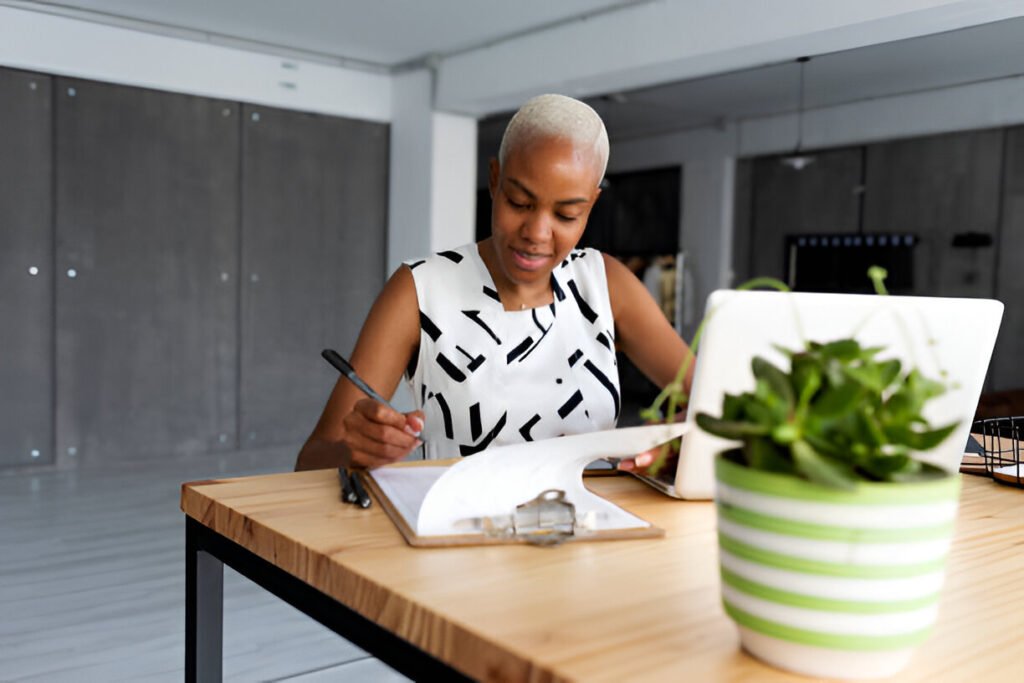
Right now, 27% of U.S. employees work remotely at least part of the time, and 51% split their time between home and the office.
A lot of home office setups still miss the mark. People deal with back pain from bad chairs, eye strain from poor lighting, and frustrating video calls because the audio setup isn’t doing its job.
A well-thought-out workspace makes a real difference in comfort, focus, and overall sanity.
This home office setup checklist walks through 11 essentials for building a workspace that actually works for remote workers, students, and creators in 2026.
Key Takeaways:
- Ergonomic furniture prevents long-term health issues
- High-performance tech keeps you competitive
- Proper lighting reduces eye strain and boosts focus
- Audio-visual quality impacts your professionalism
- Smart organization protects your workspace
What Makes a Successful Home Office in 2026
A solid home office balances three things: performance, comfort, and productivity. Performance means your tech runs smoothly without slowing you down.
Comfort means you can work through the day without aches or fatigue. Productivity shows up when those two work together. When one slips, the others usually follow.
Remote work in 2026 requires technology that keeps pace with real office demands. You need a fast processor, enough RAM to juggle multiple apps, and a display that doesn’t strain your eyes.
Cloud tools, AI productivity apps, and automation software are now part of everyday work, not extras.
Most people sit for about 10.3 hours a day. That much sitting makes ergonomics non-negotiable.
The right furniture helps prevent chronic pain caused by poor posture. Adjustable chairs, standing desks, and monitor arms go a long way when you set them up properly.
Video calls are part of daily work life. If you’re on camera often, your setup should help you look and sound professional.
Good lighting, a decent webcam, and clear audio make meetings smoother and help you show up confidently.
1. What Ergonomic Furniture Do You Need for a Home Office?
Desk requirements
Your desk sets the base for everything else, so it’s worth getting it right. An adjustable-height desk lets you switch between sitting and standing, helping your body avoid prolonged static posture. The benefit comes from changing positions, not from standing all day.
Your desk height should keep your forearms parallel to the floor while you type, with your elbows at approximately 90 degrees. Adjustable desks typically cover this range, but a fixed desk can work well if it fits your body.
Aim for a width of at least 48 inches and a depth of at least 24 inches so your monitor, keyboard, and work materials don’t feel cramped.
If you choose a standing desk, ensure it feels solid at full height. Wobbles during typing add tension you don’t need.
Office chair requirements
Using a dining chair for daily work catches up with you sooner than you expect. A proper office chair supports your body so you can sit comfortably for long stretches without fighting pain.
Look for adjustable lumbar support that fits the natural curve of your lower back, not your upper spine.
Set the seat height so your feet rest flat on the floor and your knees sit at or slightly above a 90-degree angle.
Adjust the armrests so your shoulders stay relaxed instead of lifted or reaching forward. For all-day comfort, breathable materials like mesh or fabric usually work better than leather.
If a brand-new high-end chair isn’t realistic, used chairs from brands like Herman Miller or Steelcase often provide better support and durability than cheaper new options, as long as they’re in good condition.
Complementary ergonomics
Footrests and keyboard trays solve specific problems. A footrest helps when your desk height forces your chair higher and leaves your feet hanging.
A keyboard tray helps when the desk surface puts your wrists too high for a neutral position. These aren’t mandatory, but they’re useful fixes when basic adjustments don’t fully solve the issue.
RELATED: Modern Home Office Furniture: Types, Storage, and Accessories
2. What Computing Equipment Do You Need for Remote Work?
Core hardware
Choose between a desktop and a laptop based on how much you move around. If you work from home some days and coworking spaces on others, go with a solid laptop. If you stay at one desk most of the time, a desktop usually gives you more power for the money.
Minimum specifications for 2026:
- Aim for a mid-range processor like an Intel i5 or AMD Ryzen 5.
- Use 16GB of RAM for general work, and step up to 32GB if you handle design, video editing, or AI tools.
- Get at least a 256GB SSD so your system stays fast and responsive.
- Rely on integrated graphics for everyday tasks, and add a dedicated GPU if your work is visually demanding.
This setup handles video calls, lots of browser tabs, and daily productivity apps without slowing you down.
Monitors and Display Setup
One monitor feels cramped once you’ve tried two. Dual monitors let you keep reference documents open while writing, monitor your email, or compare data side by side without constantly switching windows.
Before buying, check how the monitors connect. Many people choose monitors based on looks or price, only to discover they don’t support DisplayPort daisy-chaining.
That forces extra cables, hubs, or adapters. If you want a clean setup, confirm Daisy Chain support first. Some minimalist monitors, like the Samsung CF391, require separate HDMI cables for each screen.
If desk space is tight, an ultrawide monitor gives the same multitasking benefits on a single screen.
Go for at least 1080p resolution. If your budget allows, 1440p delivers sharper text and is easier on your eyes. Look for flicker-free displays and blue-light filters to reduce eye strain during long sessions.
Position your main monitor about an arm’s length away, with the top at or just below eye level.
If you work with long documents, forms, or lists, rotate one monitor into portrait mode. It cuts scrolling and makes text-heavy workflows easier, even if it’s not ideal for every task.
Peripherals
Your keyboard and mouse directly affect how comfortable your workday feels. Mechanical keyboards feel nicer to type on and last longer than cheap membrane models, but some people experience finger fatigue over a full day due to the higher key travel.
After a while, switching to a low-profile mechanical or laptop-style keyboard can feel easier on your hands.
Pick a mouse that fits your hand and keeps your wrist in a natural, neutral position. Wireless mice reduce cable clutter, but make sure the battery lasts.
If you type or use a mouse frequently, ergonomic split keyboards or vertical mice can help reduce wrist strain.
3. What Internet Speed and Network Equipment Do You Need?
Reliable Internet
For remote work in 2026, aim for at least 25 Mbps download and 5 Mbps upload to ensure HD video calls run smoothly.
If you upload large files or stream often, aim for 100 Mbps download and 10 Mbps upload.
Plug your desk into ethernet whenever you can—it keeps your connection steady and reduces lag. Use Wi-Fi as a backup so you can move around if needed.
Network Enhancers
Place multiple nodes with a mesh Wi-Fi system to eliminate dead zones in bigger homes. If your signal is strong but coverage is patchy, a Wi-Fi extender helps.
Use a VPN when handling company files or sensitive info. Most VPNs cost $5–10 per month and encrypt your connection to keep your data safe.
RELATED: Home Office Equipment Essentials for a Productive Home Workspace
4. How Should You Set Up Lighting in Your Home Office?
Natural Light Optimization
Let natural light hit your workspace—it keeps you alert, reduces eye strain, and helps you focus. Research shows it can boost productivity by up to 15%. Set your desk perpendicular to a window.
Facing the window creates glare, and sitting with your back to it casts shadows. Side placement gives even light without the hassle. If glare still bothers you, add sheer curtains or adjustable blinds so you can control brightness without losing all the daylight.
Artificial Lighting Strategies
Use three layers of lighting: ambient, task, and accent. Ambient lighting comes from overhead fixtures or floor lamps and lights the whole room.
Task lighting, like a desk lamp, focuses on what you’re working on. Accent lighting highlights shelves or décor.
Aim for around 300 lux at your workspace. Choose cooler white bulbs (4000–5000K) to stay alert during the day and warmer tones (2700–3000K) to wind down in the evening. LED “daylight” bulbs mimic natural light and work well in home offices.
Lighting Checklist:
- Position desk perpendicular to windows
- Use sheer curtains for glare control
- Add a task lamp with adjustable brightness
- Choose LED bulbs in the 4000-5000K range for daytime work
- Layer ambient, task, and accent lighting for flexibility
RELATED: Home Office Lighting Ideas and Solutions for a Small, Windowless Workspace
5. What Audio and Video Equipment Do You Need for Video Calls?
Webcam Requirements
Laptop webcams usually look bad. A dedicated webcam instantly improves your appearance on calls. For 2026, go for 1080p resolution—4K is overkill unless you’re recording content.
Make sure it handles low light well and keeps you in focus when you move a little. The Logitech C920e, for example, delivers solid HD video and clear audio with its dual microphones from about three feet away.
Webcam positioning:
- Place at eye level
- Center above your monitor
- Angle to look directly at camera during calls
Audio Tools
Pick a headset or noise-canceling headphones depending on your environment. If your space is quiet, a headset with a built-in mic works fine. If it’s noisy, use noise-canceling headphones and a separate desk mic to control your sound.
Microphone quality matters. Webcam mics are fine for quick calls, but a USB mic cuts background noise and makes your voice clearer.
Big monitors or soundbars can send audio in the wrong direction. People with 32-inch or larger screens often slip a foam wedge under their soundbar to aim sound toward their ears instead of buying extra gear.
The difference is most noticeable on group calls when multiple people are speaking.
Video/Audio Tech Table
| Item | Why It Matters | Minimum Spec |
| Webcam | Clear video presence | 1080p, autofocus, low-light capable |
| Microphone | Clean audio pickup | USB condenser mic or quality headset |
| Headphones | Hear others clearly | Noise cancellation optional, comfortable for long wear |
| Lighting | Face visibility on camera | 300+ lux, positioned to eliminate shadows |
6. How Do You Manage Power and Cables in a Home Office?
Power Infrastructure
Plug your equipment into a surge protector to prevent voltage spikes from frying anything. Get one with at least six outlets and a joule rating over 1000.
Add a UPS if you want battery backup during outages—it gives you time to save your work and shut down safely.
You don’t need a massive unit; a 600VA UPS can keep your computer, monitor, and router running for 10–15 minutes.
Plan outlet placement before arranging your furniture. Keep power near your desk, and don’t run extension cords across the floor—they’re a tripping hazard.
Cable Organization
Tidy your cables from the start. Use under-desk trays to keep cords off the floor and clips to secure wires along desk edges or legs.
Bundle cables with Velcro ties and label each one so you know what’s what. Spending a little time upfront keeps your workspace cleaner and saves you headaches later.
7. What Software Do You Need for Remote Work Productivity?
Communication and Collaboration Tools
Pick tools that actually work for messaging, video calls, and shared projects. For messaging, use Slack or Microsoft Teams. For video calls, use Zoom, Google Meet, or Microsoft Teams.
Store and sync files in Google Drive, Dropbox, or OneDrive so everything is automatically backed up. When you need multiple people editing documents simultaneously, Google Workspace or Microsoft 365 handles it without issues.
Productivity Tools
Keep your projects and time under control—track tasks with Todoist, Asana, or Notion. Use Toggl or Clockify to see where your hours go.
AI assistants can handle repetitive tasks, draft content, or summarize long docs—they’re becoming standard in 2026.
Block distractions with apps like Freedom or Forest so you can actually focus when it counts.
8. How Do You Maintain Health and Comfort in a Home Office?
Take Breaks and Move
Sitting or standing in the same spot all day strains your body. Set a timer to stand, stretch, or walk for 5 minutes every 45–60 minutes.
Apps like Stretchly or Big Stretch Reminder can handle the reminders for you. Add ergonomic gear—wrist pads, monitor arms, or anti-fatigue mats—to ease pressure on your wrists, shoulders, and legs.
Keep Your Environment Comfortable
Air quality affects focus and how you feel overall. An air purifier cuts dust and allergens, and a few plants naturally freshen the air while making your space feel livelier.
Keep your office around 68–72°F. If it gets too hot or cold, a small space heater or desk fan fixes it without adjusting the whole house.
9. How Should You Organize Your Home Office?
Desk and Supply Organization
Keep the things you use most within arm’s reach. If you work with multiple devices—like two laptops and a desktop—organize both your desk and your digital setup.
Use a KVM-enabled monitor to switch between devices without duplicating keyboards and mice.
Daisy-chaining your monitors with DisplayPort cuts down on extra cables. These moves keep wires under control better than trying to fix a tangled mess later.
Use drawer organizers for pens, paperclips, and small supplies. Stack papers in desktop trays so they don’t pile up.
Divide your desk into zones like one for writing, one for your computer, and one for supplies. This keeps clutter from spreading across your workspace.
Filing and Reference Systems
Some papers still need a physical home. Store important documents you reference often in a small file cabinet or desktop box.
Keep digital files organized with a clear folder structure and consistent naming. Back up your files to the cloud to avoid losing anything if a hard drive fails.
10. How Do You Personalize Your Home Office Space?
Aesthetic Upgrades
Your home office doesn’t have to feel like a corporate cubicle. Put some plants around to brighten the space and clean the air. Hang art or photos that show your personality.
Pick colors that help you focus—cooler shades like blue and green calm you, while warmer tones like yellow or orange give you energy.
Boundary Creation
Set up physical cues to separate work from downtime. When you sit in your workspace, your brain knows it’s time to focus. When you leave, it knows the day is done.
In hybrid setups, this matters even more since you don’t have a commute to mark the shift. Small actions, like closing your laptop or turning off your desk lamp, reinforce those boundaries.
11. How Do You Secure Your Home Office and Protect Your Data?
Physical Safety Checklist
Essential safety measures:
- Anchor tall bookshelves to walls to prevent tipping
- Secure loose cables to avoid tripping hazards
- Ensure desk and chair sit on solid, stable ground without wobbling
- Check that power strips aren’t overloaded with too many devices
Digital Security Measures
Critical security tools:
- VPN services: Encrypt your internet connection, especially on shared or public networks
- Antivirus software: Catch malware before it damages your system
- Two-factor authentication: Add extra security layer to your accounts
- Automatic backups: Set up to external drive or cloud service to prevent data loss from crashes
Comprehensive Setup Checklist Table
| Item | Purpose | Minimum Spec | Status |
| Ergonomic Furniture | |||
| Adjustable desk | Sit-stand flexibility | Height range 22-48 inches | ☐ |
| Office chair | Posture support | Lumbar support, adjustable height/arms | ☐ |
| Computing & Devices | |||
| Computer | Core workstation | i5/Ryzen 5, 16GB RAM, 256GB SSD | ☐ |
| Monitor(s) | Visual workspace | 1080p minimum, dual setup preferred | ☐ |
| Keyboard & mouse | Input devices | Comfortable, ergonomic design | ☐ |
| Connectivity | |||
| Internet service | Reliable connection | 25 Mbps down, 5 Mbps up minimum | ☐ |
| Ethernet cable | Stable wired connection | Cat6 or better | ☐ |
| Mesh Wi-Fi (optional) | Extended coverage | Dual-band, 3+ nodes for large spaces | ☐ |
| Lighting | |||
| Natural light access | Primary illumination | Window with glare control | ☐ |
| Desk lamp | Task lighting | LED, adjustable brightness, 300+ lux | ☐ |
| Overhead lighting | Ambient light | LED bulbs, 4000-5000K color temp | ☐ |
| Audio & Video | |||
| Webcam | Video presence | 1080p, autofocus, low-light performance | ☐ |
| Microphone | Audio clarity | USB condenser or quality headset mic | ☐ |
| Headphones | Audio input | Comfortable, optional noise cancellation | ☐ |
| Power & Cables | |||
| Surge protector | Equipment protection | 6+ outlets, 1000+ joule rating | ☐ |
| UPS (optional) | Power backup | 600VA for basic setup | ☐ |
| Cable management | Organization | Under-desk trays, clips, ties | ☐ |
| Software | |||
| Communication tools | Team collaboration | Slack/Teams, Zoom/Meet | ☐ |
| Productivity apps | Task management | Todoist/Asana/Notion | ☐ |
| Cloud storage | File access | Google Drive/Dropbox/OneDrive | ☐ |
| Health & Comfort | |||
| Break timer | Movement reminders | App or physical timer | ☐ |
| Air quality | Environment comfort | Purifier or plants | ☐ |
| Temperature control | Workspace climate | Fan or heater as needed | ☐ |
| Organization | |||
| Desk organizers | Supply management | Drawers, trays, desktop zones | ☐ |
| Filing system | Document storage | Physical cabinet or digital folders | ☐ |
| Personalization | |||
| Decorative elements | Atmosphere | Plants, art, photos | ☐ |
| Boundary markers | Work-life separation | Physical space cues | ☐ |
| Security & Safety | |||
| VPN service | Connection security | Encrypted internet access | ☐ |
| Antivirus software | System protection | Real-time scanning | ☐ |
| Backup system | Data protection | Automatic cloud or external drive | ☐ |
How Much Does a Home Office Setup Cost?
Basic Budget Tier
A functional home office on a tight budget runs $500-800.
Budget breakdown:
- Basic adjustable desk: $150-250
- Decent office chair with lumbar support: $100-200
- Used or budget laptop: $200-300
- Simple LED desk lamp: $20-40
- Basic peripherals: $50-100
This covers the essentials without premium features.
Mid and Premium Tiers
A mid-tier setup costs $1,500–$2,500 and includes better ergonomics, dual monitors, a high-quality webcam, and upgraded peripherals.
Many people mix tiers to get the most bang for their buck—pair a premium monitor like the Dell S3221QS with a budget monitor arm, or build a desk from IKEA Alex drawers while investing in higher-quality peripherals.
Focus your spending on the items you use most rather than trying to make every component top-tier.
Premium setups cost $3,000 or more and include high-end standing desks, ergonomic chairs like the Herman Miller Aeron, multiple 4K monitors, and premium AV equipment. Most remote workers land in the middle and upgrade pieces over time as their budget allows.
What Are Common Home Office Setup Mistakes?
Critical mistakes to avoid:
- Cheap chairs can cause back pain over time. Invest in proper support now, or you’ll pay for it later.
- Slow or unreliable internet kills productivity—dropped calls and stuck uploads waste time.
- Bad lighting strains your eyes and gives you headaches.
- Messy cables make troubleshooting a nightmare. Tidy them up from the start.
- Skipping security leaves your data exposed.
- Working in a bedroom corner blurs the line between work and life, speeding up burnout.
- Choosing gear for looks over function backfires. Check connectivity and ergonomic features before buying. For example, the Samsung CF391 white monitors don’t support DisplayPort daisy-chaining, so you end up juggling extra HDMI cables.
Focus your budget on what affects your comfort and daily performance, not just what looks nice.
Conclusion Summary Block
These 11 essentials set up a home office that actually works in 2026. Ergonomic furniture keeps your body healthy, and fast, reliable tech lets you get your work done without frustration.
Proper lighting and good audio-visual gear help you stay focused and look professional, while smart organization and security keep your work safe.
If you’re a remote worker juggling hybrid schedules, a student handling coursework, or a creator building your business, investing in your workspace makes a real difference in comfort, productivity, and long-term well-being.
Start with the basics, upgrade piece by piece, and build a space that supports the way you work every day.
FAQ: Home Office Setup Essentials
Pick a dedicated space away from your living areas. Place your desk near natural light, but keep it perpendicular to windows so glare doesn’t hit your screen. Use an ergonomic chair and desk to support your body during long sessions. Layer your lighting with overhead, task, and accent sources. Hide cables and supplies to reduce visual clutter.
Add one or two personal touches—a plant or a photo—to keep the space motivating without distracting you. The goal is clear: create a clear separation between work and home life.
Pick a dedicated space away from your living areas. Place your desk near natural light, but keep it perpendicular to windows so glare doesn’t hit your screen.
Use an ergonomic chair and desk to support your body during long sessions. Layer your lighting with overhead, task, and accent sources. Hide cables and supplies to reduce visual clutter.
Add one or two personal touches—a plant or a photo—to keep the space motivating without distracting you. The goal is clear: create a clear separation between work and home life.
What Productivity Setup Actually Works for You
Your setup depends on how you work. For deep, focused work, use noise-cancelling headphones, a distraction-blocking app, and a single monitor to stay in the zone.
For collaborative work and frequent video calls, ensure you have a high-quality webcam and microphone, and a fast internet connection. Creative work calls for powerful hardware, multiple monitors, and a color-accurate display.
Writers need a comfortable keyboard and ergonomic setup for long typing sessions. Try different layouts and tools until you find what works best for your workflow.
How to Set Up Your Workspace to Be Minimalistic and Productive
Clear everything off your desk and keep only what you use daily. Store supplies in drawers or organizers, and hide wires with cable management.
Choose furniture with clean lines and neutral colors that don’t compete for attention. Keep one or two personal items, like a plant or a photo.
On your computer, close unnecessary apps and browser tabs. The goal is simple: remove distractions while keeping essential tools within reach so your mind has more room to focus.