
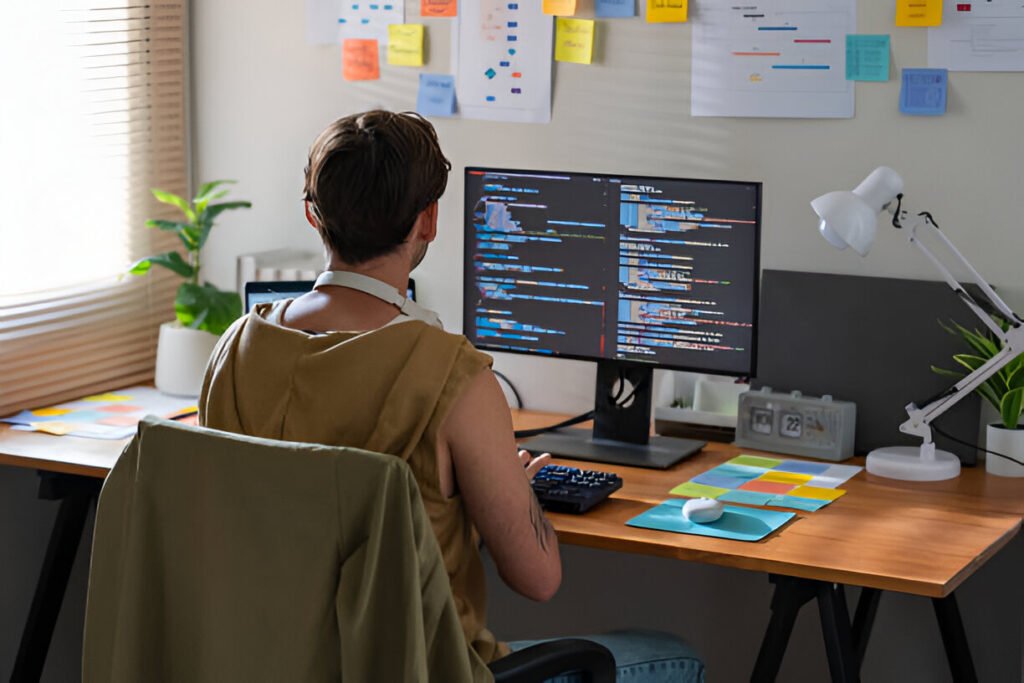
Building a productive programmer workspace isn’t about expensive gear—it’s about smart choices, preventing injury, and maximizing focus. This guide covers the complete home office setup for programmers, what you need based on role and budget, optimizing for sustained concentration, preventing RSI affecting 60% of IT workers, and building flexibility for remote, hybrid, or learning modes.
Key Takeaways:
- Ergonomics prevents career-ending RSI affecting 10%+ of computing professionals.
- Monitor configuration dramatically impacts coding efficiency
- Standing desks provide measurable health benefits when used 3-4 hours daily
- Budget tier matters less than choosing the right features for the workflow
- AI assistants, now used by 65% of developers, boost productivity 20-55% on specific tasks
Core Principles of a Modern Programmer Home Office
Productivity-First Design Philosophy
Your workspace should eliminate cognitive friction. Every poorly positioned monitor or tangled cable breaks concentration.
Programmers hold system architectures in working memory while debugging—physical design directly impacts mental efficiency.
Position frequently used items within reach, eliminate visual clutter, and create clear zones for different tasks.
Ergonomics as Injury Prevention, Not Comfort Luxury
RSI isn’t discomfort—it ends careers. Research shows that many computing professionals develop RSI, ranging from mild tingling to debilitating pain that prevents typing.
Proper ergonomics means neutral wrist positioning, monitors at eye level, preventing neck strain, and chairs that support the natural curvature of the spine.
These aren’t luxury features; they’re for injury prevention and determining whether you code at 50.
RELATED: Ergonomics Home Office Setup, Ideas, and Tips
Flexibility for Remote, Hybrid, and Learning Modes
Your workspace must adapt. Deep focus coding requires a different setup than pair programming or tutorial learning. Rigid optimization for one mode creates friction elsewhere.
Build flexibility into desk height, monitor positioning, and peripherals so you can shift between modes without major reconfiguration.
Desk and Workspace Foundation
What Desk Type and Size Do Programmers Need?
Fixed desks work well for young, healthy people, but programmers sit for 8-12 hours a day. Standing desks allow position changes—standing during calls, sitting for algorithm work.
Research shows that standing for 3-4 hours per day burns 144 additional calories and reduces blood sugar spikes by 43%.
Dimensions matter more than type. You need 60 inches in width for dual monitors with room for peripherals.
Triple monitors or documentation spreading requires 72 inches. Depth should be 30 inches so monitors sit at arm’s length, which is critical for preventing eye strain.
| Desk Type | Best For | Budget Tier |
| Fixed 60″x30″ | Single/dual monitor, tight budget | $150-300 |
| Electric Standing 60″x30″ | Standard programmer setup | $400-600 |
| Electric Standing 72″x30″ | Multi-monitor, spacious workflow | $600-900 |
Desk Layout Optimization
Monitor distance affects everything. Being too close strains the eyes; being too far away causes squinting. Position the primary display arm’s length away—20-26 inches from the eyes.
Secondary monitors at a similar distance, angled slightly inward to reduce head turns. Elbows form 90-degree angles when typing, with wrists staying neutral—not bent.
Cable and Power Management
Messy cables snag when adjusting desk height—Mount cable trays under the desk to route power and peripherals cleanly.
A quality surge protector needs enough outlets for monitors, computers, chargers, and lamps.
Leave cable slack for standing desk raises. Velcro ties are preferred over zip ties because they can be adjusted periodically.
Ergonomic Seating and Posture Systems
Which Chair Features Actually Prevent Back Problems?
Three features help prevent back problems: adjustable lumbar support that fits the spine’s curvature and seat depth adjustment.
Hence, the thighs rest without knee pressure, and the armrests allow the shoulders to relax while keeping the elbows at 90 degrees.
Everything else is secondary. Feet rest flat, knees at 90 degrees. Without proper lumbar support, lower back pain develops within months.
Prioritize:
- Adjustable lumbar support pressing into the lower back
- Seat depth adjustment (3-4 inches between seat edge and knees)
- Height adjustment (feet flat, knees 90 degrees)
- Armrest adjustability (elbows 90 degrees while typing)
Ignore:
- Headrests (unless watching videos, not coding)
- Fancy mesh patterns (basic mesh works)
- Brand name (test comfort yourself)
Alternative Seating Options
- Kneeling chairs: Force better posture by tilting the pelvis forward, but they are uncomfortable all day
- Stools: Work for brief standing desk sessions
- Balance ball chairs: Gimmicky for serious work
Better approach: Switch between sitting and standing throughout the day.
Posture Habits and Micro-Movement
Perfect ergonomics fail if you sit frozen for hours. Set timers every 45-60 minutes—stand, walk, and do shoulder rolls. These micro-breaks prevent stiffness and keep blood flowing. Consciously relax your shoulders every few minutes while coding.
Monitor Setup and Visual Ergonomics
What Monitor Size and Resolution Work Best for Programming?
Screen real estate impacts coding productivity, but upgrading from a 22-inch 1080p display to a 27-inch 1080p yields nothing beyond bigger pixels—resolution determines actual workspace, which is why a 32-inch 4K monitor provides a pixel count equivalent to a 2×2 matrix of 1080p displays, allowing multiple IDE windows without the constant alt-tabbing that single lower-resolution screens require. Developers need space for an IDE, a terminal, documentation, and a browser simultaneously.
Ultrawide monitors (21:9) provide seamless horizontal space. Dual 27-inch at 2560×1440 offers more pixels and flexibility.
For most programmers, dual 27-inch QHD monitors hit the sweet spot: sharp text, ample space, and reasonable GPU requirements.
4K creates Windows scaling issues and demands more power. Ultrawide monitors work well for front-end developers; backend engineers prefer dual-monitor separation.
| Configuration | Best Role | Pros | Cons |
| Single 27″ QHD | Student | Affordable | Limited multitasking |
| Dual 27″ QHD | Full-stack | Flexibility | Bezel gap |
| 34″ Ultrawide | Frontend | Seamless | Limited vertical space |
Ultrawides work well for spreadsheets and web development, but curvature matters—business-focused 49-inch displays with minimal curves, like the Dell 5120×1440, suit report work.
In contrast, aggressive gaming curves like the Samsung G9 create distortion problems for CAD or modelling tasks, making curvature specifications worth checking against specific workflow requirements rather than assuming all ultrawides perform equivalently.
Monitor Mounts and Positioning
Desk-mounted arms free surface space and provide better positioning. Adjust the height so the screen top sits at or slightly below eye level to prevent neck strain—a positioning issue that becomes acute when working on laptop screens for 8+ hours daily, which is why users consistently report buying monitor arms after discovering boxes or books under displays work temporarily but lack the adjustment flexibility needed to maintain proper posture throughout the workday.
Arms let you angle dual monitors inward.
Blue Light, Refresh Rates, and Eye Health
Blue light filters tint screens orange. Better: adjust brightness matching room lighting. 60Hz is fine for coding. Color accuracy matters for frontend work. Screen calibration involves proper brightness, contrast, and font size.
Secondary Displays and Tablets
Some programmers use vertical secondary monitors for documentation, Jira boards, and time trackers. However, this orientation is overhyped for IDE work—users who buy 24-inch 1440p vertical displays typically discover they’re unsuitable for code editing and end up dedicating them to project management tools rather than the development environment itself. Works with desk space; otherwise, it’s clutter.
Audio Considerations
Built-in monitor speakers consistently underperform—even on quality displays like the 34-inch Gigabyte ultrawide. Users describe integrated audio as terrible, requiring separate speaker or headphone solutions since monitor manufacturers prioritize visual quality over audio components, making external audio equipment a de facto requirement rather than an optional upgrade.
Input Devices: Keyboards, Mice, and Alternatives
Mechanical vs Low-Profile Keyboards
Mechanical keyboards reduce typing fatigue, though community enthusiasm sometimes overstates premium board benefits—users report boards in the $300 range like the Tofu60 with quality switches, perform within 5% of $1000+ custom builds in an actual typing feel, making the ultra-premium tier difficult to justify unless keyboard customization itself is the hobby rather than programming productivity. Low-profile mechanical keyboards offer benefits without desk height issues.
Cherry MX Switch Types:
- Browns: Tactile bumps without loud clicks, ideal for shared spaces
- Blues: Clicky and satisfying but annoying on calls
- Reds: Quiet but lack tactile feedback
Mouse Types and Hand Health
Standard mice force unnatural twisted positions. Years of use contribute to wrist strain.
Mouse Options:
- Standard mice: Force unnatural twisted positions, contributing to wrist strain over the years
- Vertical mice: Position hands in handshake angles, reduce rotation, feel weird initially, but many report decreased pain
- Trackballs: Eliminate repetitive movement—thumb or fingers move the ball while the hands stay stationary
Advanced Input Alternatives
Split Keyboards (e.g., Dygma Raise):
- Position each half shoulder-width apart
- Eliminate the inward rotation of the standard keyboard force
- Research shows a significant reduction in upper-body tension
Programmable Macro Pads:
- Handle repetitive combinations
- Map IDE shortcuts or code snippets to single buttons
- Custom keymapping for frequently-used symbols reduces finger travel
Computing Hardware for Programmers in 2026
Should Programmers Choose Desktop or Laptop Setups?
Desktops deliver better performance per dollar and are easier to upgrade. Laptops provide portability.
Many run laptops as brains connected to desktop peripherals, particularly when managing separate work and personal computers.
In this context, KVM switches or monitors with multiple inputs become valuable, enabling instant transitions between machines without cable swapping or peripheral reconnection that disrupts concentration during workday-to-personal-project transitions. Ensure there are enough ports, or use a USB-C dock.
Recommended Specs by Role
Frontend Developer:
- CPU: Ryzen 5/Intel i5
- RAM: 16GB minimum
- Storage: 512GB SSD
Backend Developer:
- CPU: Ryzen 7/Intel i7 for compilation
- RAM: 32GB for containers
- Storage: 1TB SSD
Student:
- CPU: Budget quad-core
- RAM: 16GB
- Storage: 256GB SSD
Content Creator:
- CPU: Ryzen 9/Intel i9
- RAM: 64GB for rendering
- GPU: RTX 4060+
- Storage: 2TB NVMe SSD
Cooling, Noise, and Power Efficiency
Loud fans break concentration. Quality CPU coolers run quieter than stock. Building a desktop: invest in a case with good airflow and quiet fans—a $50 upgrade pays dividends for focus. Avoid gaming laptops with aggressive fan curves unless actually gaming.
Software, OS, and AI Tooling Environment
Which Operating System Should Programmers Choose?
Operating System Options:
- MacOS: Unix foundation with polished UI—great for web development and iOS work
- Linux: Customization and native DevOps tooling, but requires configuration
- Windows: Runs WSL2 for Linux environments
Choose based on the target platform.
Development Tools and IDE Stack
IDE Comparison:
- VS Code: Fast, extensible, handles most languages—ideal for simple scripts and web dev
- JetBrains IDEs: Deeper features but consume more RAM—justified for enterprise Java or Kotlin with massive codebases where IntelliJ’s analysis pays off
AI Assistants and Automation in 2026
AI coding tools shifted from novelty to standard workflow. Data shows 65% of developers use AI assistants weekly, with productivity gains of 20-55% on specific tasks.
AI Excels At:
- Boilerplate generation
- Test writing
- Refactoring
- Converting data structures
- Generating documentation
AI Struggles With:
- Architecture decisions
- Complex debugging
- Business logic
Real value isn’t writing entire apps from prompts. Use AI for mechanical work while focusing on system design. Ethical considerations include avoiding overreliance, degrading fundamental coding skills, and assessing the quality of AI-generated code.
Lighting, Acoustics, and Environmental Control
Task Lighting vs Ambient Lighting
Overhead lighting creates monitor glare. Position the desk perpendicular to the windows so natural light comes from the side.
Monitor backlighting enhances visual appeal but increases contrast in front of the screen, reducing visual comfort during extended sessions.
Task lighting that illuminates the keyboard area through diffuse lamps or LED strips is more effective than RGB backlighting alone for reducing eye strain during full workdays, despite backlighting’s aesthetic advantages.
Desk Lamp Color Temperature:
- Cool white (5000-6500K): Morning focus
- Warm white (2700-3000K): Evening, reduced eye strain
RELATED: Home Office Lighting Ideas and Solutions for a Small, Windowless Workspace
How Do You Control Noise in a Programming Home Office?
Noise destroys programming concentration. Quality closed-back headphones with passive isolation address most issues without requiring expensive acoustic treatment. Active noise cancellation is effective for travel, but passive isolation is sufficient at quiet desks.
Temperature, Air Quality, and Comfort
The brain works best at 68-72°F. Being too warm causes drowsiness; being too cold creates distraction. A small desk fan provides airflow without the cost of AC.
Connectivity, Networking, and Power Reliability
What Internet Speed Do Programmers Actually Need?
Internet Speed Requirements:
- Basic programming: 25 Mbps down suffices for video calls, GitHub pushes, and documentation
- Docker images/large datasets: 100+ Mbps required
- Upload speed: 10+ Mbps minimum prevents lag when pushing commits or video calling
Stability trumps raw speed. Occasional dropouts during deployments cause more frustration than slower downloads.
Should Programmers Use WiFi or Wired Ethernet?
WiFi introduces latency and drops. Run an Ethernet cable for the primary machine. Reliability improvement is noticeable during calls and remote development. If the router is 5+ years old, upgrading to WiFi 6 improves consistency.
Power Backup and Surge Protection
Surge protectors are mandatory. For critical work, UPS provides 10-20 minutes of backup during outages, enough to save work and shut down properly.
Budget-Based Setup Recommendations
Entry-Level Setup
Starting out or on a student budget? Prioritize ergonomics over specs. A decent ergonomic chair and proper desk height matter more than RGB. Get a fixed-height desk, a basic ergonomic chair, a single 27-inch monitor, and an entry-level mechanical keyboard.
Use a laptop as a primary computer, or consider last-generation professional-grade hardware from IT disposal companies—users report purchasing 12-year-old Dell T7500 CAD workstations originally costing £5k-10k for under £750, with compilation performance still exceeding that of modern i7 consumer builds due to professional-grade components that retain value through extended lifecycles. This handles learning and junior developer work without back pain.
Mid-Range Professional Setup
Working programmers should invest in preventing injury and maximizing efficiency.
An electric standing desk, a quality ergonomic chair, dual 27-inch QHD monitors, a mechanical keyboard, and a vertical mouse from the foundation.
Add a capable desktop or high-spec laptop with a dock. This tier provides everything needed for productive programming.
High-End Power User Setup
Senior engineers justify premium gear. Top-tier electric standing desk with memory presets, Herman Miller Aeron or Steelcase Leap chair, ultrawide QHD or dual 4K monitors, custom mechanical keyboard, and high-end desktop with 64GB+ RAM. Add UPS for reliability, a quality lamp, and premium headphones.
| Budget Tier | Core Setup | Computing | Total |
| Entry-Level | Fixed desk + chair + 27″ monitor | Laptop | $800-1200 |
| Mid-Range | Standing + ergo chair + dual QHD | Desktop/laptop | $2000-3500 |
| High-End | Premium standing + Aeron + ultrawide | Workstation | $5000+ |
Minimalist vs Maximalist Home Office Styles
Minimalist Setup Logic
Some programmers thrive with minimal distraction. Single monitor, laptop, keyboard, and mouse—nothing else. This reduces decision fatigue and cleaning effort.
The tradeoff is reduced flexibility. Without a second monitor, you’ll alt-tab more. Without desk space for notes, you rely entirely on digital tools.
Feature-Rich and Multi-Display Setups
Maximalist setups embrace abundance: triple monitors, a mechanical keyboard with a macro pad, a vertical plus a regular mouse, a desk-mounted microphone, a separate webcam, and decorative elements.
The benefit is that all tools are immediately accessible. Need three documentation pages while coding? All are visible simultaneously. The tradeoff is complexity and cost.
Common Home Office Setup Mistakes to Avoid
- Overbuying hardware: Beginners buy triple monitors or top-spec machines, then realize dual monitors and mid-range power suffice. Start modestly, and upgrade as bottlenecks emerge.
- Ignoring ergonomics until pain develops: By the time wrist or back pain appears, damage has already accumulated. Proper ergonomics from day one prevents injuries from taking months to heal.
- Poor lighting causes eye strain: Dim rooms or harsh overhead lights create unnecessary fatigue. Proper lighting may seem minor until daily headaches set in.
- Cable management neglect: Tangled cables frustrate when adjusting desk height or swapping peripherals. Route properly from the start.
- No upgrade path: Buying desks without cable management or laptops that can’t add RAM creates friction later.
Future-Proofing Your Home Office Beyond 2026
Modular Hardware Choices
Technology shifts fast. Don’t over-invest in bleeding-edge specs that will become outdated soon. Choose modular systems that you upgrade incrementally.
Future-Proof Choices:
- Desktops with standard components—swap RAM or storage easily
- Monitors with VESA mounts—work with any future stand
- USB-C docks adapt to new peripherals
Adapting to New Work Patterns
Remote work patterns evolve. Hybrid schedules, asynchronous collaboration, and increased video presence are changing workspace requirements.
Build flexibility so you shift between modes, with travelling developers prioritising ultra-portable solutions like 15-inch 2K portable monitors with VESA-mounted tripods over desktop optimization—setups designed for 10-second deployment that trade ergonomic ideals for portability, since developers accustomed to 32-inch curved ultrawides at home still need functional screen estate expansion when working remotely.
Sustainability and Energy Efficiency
Power consumption adds up. Efficient monitors, proper sleep modes, and smart power strips reduce environmental impact and costs. Wired peripherals offer reliability over wireless—no battery concerns or connectivity drops during critical moments.
Summary Block—Ideal Programmer Home Office Checklist
- Desk: 60-72″ width, 30″+ depth, electric standing recommended, cable management
- Chair: Adjustable lumbar support, seat depth adjustment, height adjustment
- Displays: Dual 27″ QHD or 34″ ultrawide, monitor arms, positioned arm’s length
- Input Devices: Mechanical keyboard, vertical mouse, split keyboard for shoulder tension
- Hardware: Specs matched to role, 16GB RAM minimum, 32GB for professional work
- Software: IDE suited to languages, AI assistant (Copilot, Cursor, Claude Code)
- Environment: Task lighting with adjustable temperature, ethernet connection, quality headphones, 68-72°F
Want more home office tips? Join our newsletter for weekly productivity insights.
Frequently Asked Questions (FAQ) — Home Office Setup for Programmers in 2026
What is the ideal home office setup for programmers in 2026?
The ideal setup balances ergonomics, productivity, and budget. Core components include an electric standing desk (60+ inches wide), an ergonomic chair with lumbar support, dual 27-inch QHD monitors, a mechanical keyboard, and computing hardware matched to your role.
AI coding assistants are now standard, with 65% of developers using them weekly. Position the monitor at arm’s length, keep wrists neutral while typing, and alternate between sitting and standing throughout the day.
How many monitors do programmers actually need for productivity?
Most work best with two monitors. Dual 27-inch displays at 2560×1440 provide space for IDE, terminal, browser, and documentation without excessive head turning.
Backend developers benefit from clear separation. Frontend developers often prefer ultrawides to see entire layouts without center bezels obstructing the view.
Is a standing desk necessary for programmers working long hours?
Standing desks provide measurable benefits but aren’t mandatory. Alternating between sitting and standing burns 144 extra calories per day and reduces blood sugar spikes by 43%. Real value is positional flexibility throughout the day.