
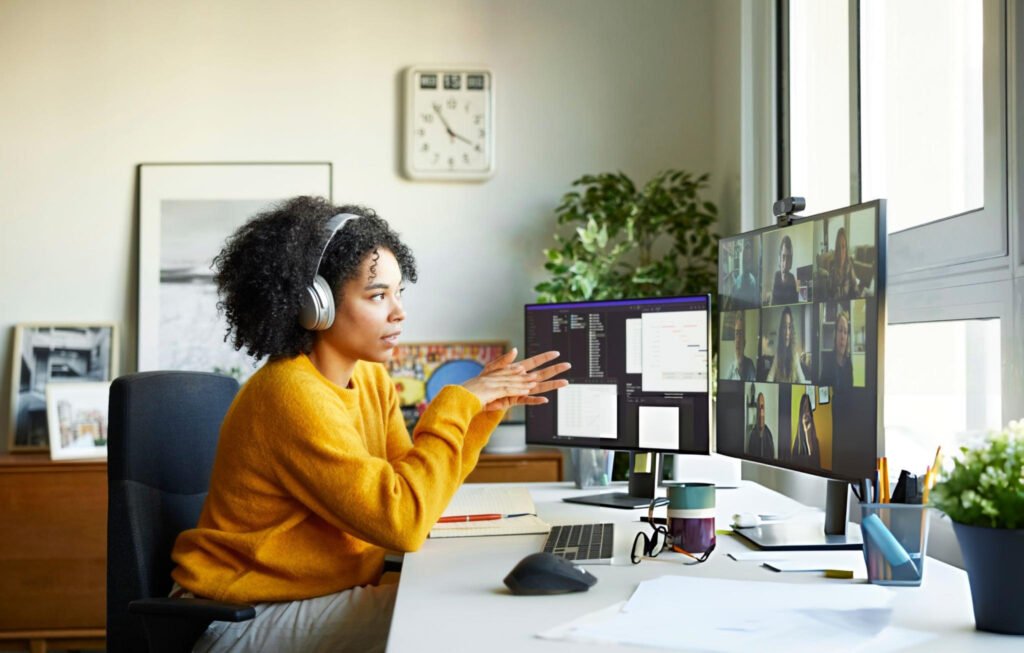
I’ve been on way too many video calls where I look like I’m calling from a cave. Most people working from home face the same problem.
You’ve got overhead lights that make you look washed out, windows behind you that turn you into a silhouette, or dim rooms where you’re barely visible.
The truth is, your lighting situation at home won’t change much. But the webcam you use absolutely can.
This guide breaks down which webcams for video calls handle typical home lighting without requiring a studio setup.
You’ll learn what specs matter, which features are marketing nonsense, and how to pick a webcam based on your actual room.
Quick Takeaways:
- Sensor size matters more than megapixels for low-light performance
- Most video platforms cap at 1080p, making 4K often unnecessary
- Auto-exposure and white balance do the heavy lifting in mixed lighting
- Built-in laptop webcams max out at 720p with terrible low-light handling
- Budget webcams, around $60, can outperform expensive models in poor lighting
Why Home Lighting Breaks Most Webcams
Common Home Lighting Scenarios
Here’s what your home office probably looks like. Overhead ceiling lights create harsh shadows under your eyes and nose.
Side windows flood one half of your face with light while the other half stays dark. Low-light rooms after sunset turn everything grainy and muddy.
And mixed color temperatures happen when daylight from windows clashes with warm indoor bulbs, making your skin tone look absolutely bizarre on camera.
Nobody has a perfectly lit room. That’s the reality. Cheap webcam sensors can’t handle it.
They pick one exposure level and stick with it, so either your face is visible, and the background is blown out white, or the background looks normal, and you’re basically a dark blob.
Technical Limits of Cheap Webcams
Small sensors are the main culprit. Most budget webcams use tiny 1/4-inch or 1/3-inch CMOS sensors that can’t capture sufficient light.
When light is scarce, these sensors increase the ISO, which amplifies noise and makes everything look grainy.
Poor dynamic range means the webcam cannot capture both bright and dark areas in the same frame, resulting in clipped highlights or crushed shadows.
Aggressive noise reduction tries to smooth out the grain but ends up making your face look like a watercolor painting.
Autofocus hunting is the annoying phenomenon where the camera keeps going in and out of focus because it’s struggling to lock onto your face in low-light conditions. You’ve seen it. It’s distracting for everyone on the call.
What “Good in Home Lighting” Actually Means
Key Performance Metrics Explained
Low-light sensitivity refers to how well a webcam performs in low-light conditions.
Webcams with larger sensors (1/2-inch or bigger) and wider apertures (f/2.0 or lower) collect more light and produce cleaner images in dim rooms.
Dynamic range is the camera’s ability to capture detail in both bright and dark parts of the frame simultaneously.
You want this when you’ve got a window behind you or uneven room lighting.
White balance accuracy determines whether your skin looks natural or weirdly orange or blue. Cheap webcams often get this wrong in mixed lighting conditions.
Noise handling is critical because even good low-light cameras will have some grain, but the question is whether that noise is fine and barely noticeable or chunky and distracting.
Frame consistency matters too. Some webcams drop frames when lighting changes, which makes you look laggy on calls.
Specs That Matter vs Specs That Mislead
Sensor size beats megapixels every single time. A 2-megapixel camera with a 1/2-inch sensor will destroy an 8-megapixel camera with a tiny 1/4-inch sensor in low light. It’s physics. Aperture is the opening that lets light in.
An f/1.7 aperture lets in way more light than f/2.8, which translates directly to better performance in dim rooms.
HDR marketing claims are usually overhyped. Real HDR helps balance exposure, but most webcams simply apply the label to basic auto-exposure features.
Webcam Features That Improve Home Lighting Performance
Sensor and Optics
CMOS sensor size is the foundation of good low-light performance. Look for sensors 1/2 inch or larger if you’re serious about handling low-light conditions.
The Razer Kiyo Pro Ultra features a large 1/1.2-inch sensor that captures nearly four times as much light as standard webcams.
Lens quality matters because a sharp lens with high-quality optics renders clearer images, even when the sensor is working hard in low light.
Fixed focus versus autofocus is a trade-off. Fixed-focus webcams stay sharp at a set distance. Autofocus is better for dynamic setups but can hunt for focus in dim conditions, which gets annoying.
Software Processing and AI Enhancements
Auto-exposure adjusts brightness automatically as lighting changes. Good implementations, such as Logitech’s
RightLight 4 continuously monitors the scene and makes smooth adjustments. Bad auto-exposure jumps around, making you look like you’re flashing in and out of darkness.
Auto white balance handles color temperature shifts when you move between daylight and artificial light.
Background separation impact is interesting. Some webcams with AI background blur or replacement actually perform worse in low light because the processing taxes the image pipeline and introduces artifacts.
If you’re in a dim room, skip the fancy background effects and focus on raw image quality.
Frame Rate and Resolution Trade-offs
You need to understand this trade-off. Most webcams can do either 1080p at 30 frames per second or 720p at 60 frames per second.
In low-light conditions, 1080p at 30fps almost always looks better because the sensor has more time per frame to collect light.
Higher frame rates mean less light per frame, which makes grainy footage worse. Some 4K webcams drop to 24fps in low light to compensate, which can feel slightly choppy but produces cleaner images.
| Feature | Impact on Low-Light | Priority Level |
| Large sensor (1/2″ or bigger) | High improvement | Essential |
| Wide aperture (f/2.0 or lower) | High improvement | Essential |
| Auto-exposure/white balance | Moderate improvement | Important |
| HDR processing | Small improvement | Nice to have |
| 4K resolution | Can reduce performance | Low priority |
Best Webcams for Home Lighting by Use Case
Best Overall Webcam for Home Lighting
The Logitech Brio 500, at around $130, handles typical home lighting better than cameras twice its price. The standout feature is RightLight 4, which genuinely adapts to changing conditions.
It has a 1/2.8-inch sensor that pairs well with robust software processing. The 90-degree field of view works for most setups.
Ideal for overhead lighting or mixed natural and artificial light. Struggles with extreme backlighting from large windows, but most webcams do. The USB-C connection is reliable, and the privacy shutter is well-designed.
It offers the best balance of price and performance for remote workers who need consistent quality across varying home lighting conditions throughout the day.
Best Budget Webcam for Poor Lighting
The Anker PowerConf C200 costs about $60 and punches way above its weight. It’s got a 2K sensor with auto light correction that actually works.
The image quality in dim rooms is solid. It’s not as refined as the Logitech models, but for the price, it’s an excellent value. The integrated privacy shutter is a nice touch.
Best for dim home offices or evening calls. The auto-adjustments can be slightly aggressive, but that’s better than looking like a shadow.
The adjustable field of view helps you frame shots properly, and the low-light performance is genuinely impressive for this price point. It’s the best budget option for anyone working in less-than-ideal lighting conditions.
Best Webcam for Students and Online Classes
The Dell Pro Webcam WB7022, priced at roughly $100, excels in low-light conditions, which matters for dorm rooms and student apartments that rarely have good lighting.
It’s one of the few webcams that adequately illuminates both the foreground and background in low-light conditions. The 2K resolution provides sufficient detail for whiteboard sharing or close-ups of documents.
Works well in dimly lit study spaces. The field of view is slightly narrow. The auto-exposure performs consistently across different lighting conditions, and the build quality is solid for daily use. It’s reliable for online classes where lighting can’t always be controlled.
Best Webcam for Remote Work and Meetings
The Logitech MX Brio is the professional option at $200. It features an 8.5MP Sony STARVIS sensor designed for low-light performance.
RightLight 3 with HDR balances challenging lighting conditions when windows or lamps are in the frame. The 4K output is overkill for Zoom, but it gives you lossless digital zoom capabilities.
Handles mixed lighting conditions exceptionally well. The price is steep, but it’s worth it if video quality directly impacts your professional image.
The Desk Mode feature lets you flip the camera down to show documents. The build quality feels premium, and the mounting system is versatile enough to support different monitor types and desk setups.
Best Webcam for Content Creators and Streamers
The Razer Kiyo Pro Ultra, priced at $300, is the top performer in low-light webcams. That 1/1.2-inch sensor with an f/1.7 aperture captures nearly four times as much light as standard webcams.
It’s designed for streamers who broadcast in dim gaming setups or rooms with RGB lighting. The 4K at 30fps and 1080p at 60fps options provide flexibility. Autofocus is fast and reliable.
Best for consistently dim environments or night streaming. It’s bulky and expensive, but the low-light performance is unmatched.
The manual controls through Razer Synapse let you fine-tune every aspect of the image. The built-in privacy shutter is mechanical and reliable, not a flimsy sliding piece.
Best Compact Webcam for Small Spaces
The OBSBOT Tiny 2 Lite is small, affordable at around $100, and balances low-light performance with portability.
The AI tracking keeps you centered even if you move around. It’s got decent noise handling for its size and works well in moderately dim conditions, though it’s not designed for cave-like darkness.
Great for small desks or travel setups. The gimbal mechanism is smooth and unobtrusive during calls.
Built-In Laptop Webcam vs External Webcams for Video Calls in Home Lighting
Why Laptop Webcams Struggle
Built-in laptop webcams are terrible in anything less than perfect lighting. Most max out at 720p resolution with tiny sensors that can’t gather enough light.
They’re positioned at the top of your screen, which is often the worst angle for lighting because overhead lighting casts shadows across your face. There’s no room for quality optics in that thin bezel.
Auto light correction on laptop webcams is at best basic. They’ll boost brightness, but that just amplifies noise and makes you look grainy. Plus, you can’t reposition a laptop webcam without moving your entire computer.
When an External Webcam Is Worth It
If you’re on video calls more than twice a week, an external webcam pays for itself quickly. The difference in image quality is immediately noticeable.
External webcams start at 1080p and feature much larger sensors than laptop cameras. You can position them at eye level or adjust the angle to work with your room’s lighting.
Most external webcams have actual auto-exposure and white balance systems that adapt to changing conditions throughout the day.
That matters if you take calls in the morning with natural light and again in the evening under artificial lighting.
| Feature | Built-In Laptop Webcam | External Webcam |
| Resolution | 720p maximum | 1080p to 4K |
| Sensor size | 1/5-inch or smaller | 1/3-inch to 1/1.2-inch |
| Low-light performance | Poor, very grainy | Good to excellent |
| Positioning flexibility | Fixed to the laptop lid | Adjustable placement |
| Price | Included with the laptop | $30 to $300 |
How to Improve Webcam Performance Without Buying New Gear
Room Setup Adjustments
Light positioning is everything. Face your light source; don’t have it behind you. If you’ve got a window, position yourself facing it so natural light hits your face evenly.
When that’s not possible, add a cheap desk lamp positioned slightly above and to the side of your webcam. Background control helps too.
Darker backgrounds make you the focus and reduce the dynamic range your webcam needs to handle.
Wall color influences how light bounces around your room. White or light-coloured walls behind your monitor can serve as natural fill light, reflecting ambient room light back onto your face.
Software and Settings Tweaks
Manual exposure is available in most webcam software and, in some cases, on video call platforms.
If your webcam keeps trying to expose for the bright window behind you, lock the exposure manually so it prioritizes your face.
White balance lock prevents that annoying color shift when lighting conditions change during a call.
Third-party webcam software like Logitech Capture or Razer Synapse gives you way more control than built-in settings.
You can adjust brightness, contrast, sharpness, and saturation to compensate for poor lighting.
Zero-cost optimization checklist:
- Face your light source instead of having it behind you
- Close blinds or curtains if backlighting is severe
- Turn on all available room lights for evening calls
- Position the webcam at eye level
- Clean your webcam lens
Common Mistakes People Make When Buying Webcams for Home Use
Overpaying for Resolution
I see people dropping $200 on 4K webcams for basic Zoom calls, and it’s just wasted money. Most video conferencing platforms cap at 1080p anyway.
A 1080p webcam with good low-light performance will look better on calls than a 4K camera with a tiny sensor struggling in your dimly lit home office.
Ignoring Lighting Reality
Reviewers test webcams in perfectly lit studios with professional lighting setups. Your home doesn’t look like that.
A webcam that performs great in ideal conditions might be terrible in the overhead-lit bedroom you’re actually working from.
Look for reviews that specifically test low-light and mixed lighting performance, not just resolution.
Trusting Influencer Studio Tests
YouTube tech channels test webcams with ring lights, key lights, and fill lights running constantly.
Then you buy the same webcam, use it in your regular room, and wonder why it looks nothing like the review.
It’s because lighting makes a bigger difference than the webcam itself. A $60 webcam with a desk lamp will outperform a $200 webcam in darkness.
Webcam Buying Checklist for Home Lighting
Use this framework to match your lighting situation to webcam features:
For dimly lit rooms:
- Large sensor (1/2-inch minimum)
- Wide aperture (f/2.0 or better)
- Strong auto light correction
- Budget: Anker PowerConf C200 / Premium: Razer Kiyo Pro Ultra
For mixed lighting:
- Good auto-exposure with HDR
- Accurate auto white balance
- Decent dynamic range
- Recommended: Logitech Brio 500 or MX Brio
For inconsistent lighting:
- Adaptive auto-exposure
- Manual controls available
- Solid performance across light levels
- Recommended: Dell Pro Webcam or Logitech MX Brio
For harsh overhead lighting:
- Good HDR to handle bright top-down light
- Manual exposure lock capability
- Recommended: Any Logitech model with RightLight
For backlit situations:
- Strong HDR processing
- Large dynamic range
- Consider repositioning yourself first
- Recommended: Logitech MX Brio if repositioning isn’t possible
FAQs: Webcams for Video Calls and Home Lighting Performance
Do I need a ring light with a good webcam?
Not necessarily. A good webcam with a proper sensor size and auto light correction can handle typical home lighting without additional equipment.
However, if you’re working in consistently dim conditions, a well-positioned desk lamp makes more difference than upgrading from a $100 webcam to a $200 one.
Is 4K better than 1080p for video calls at home?
For regular video calls, no. Most platforms, including Zoom, Microsoft Teams, and Google Meet, cap video quality at 1080p regardless of your webcam’s capabilities.
Additionally, 4K requires significantly more bandwidth (25 Mbps versus 5 Mbps for 1080p), which can cause connection issues if your internet isn’t robust enough.
Are expensive webcams always better in low light?
Not always. Price doesn’t guarantee low-light performance. The Anker PowerConf C200, priced at $60, performs better in low-light conditions than some $150 webcams with smaller sensors.
What matters is sensor size, aperture, and software processing quality. The Razer Kiyo Pro Ultra, priced at $300, is expensive but offers superior low-light performance.
Can software fix bad lighting?
Software can help, but it has limits. Good auto-exposure and white balance can compensate for moderately poor lighting.
But software can’t create detail that wasn’t captured by the sensor. If your room is too dark, the webcam will boost ISO, which amplifies noise and makes everything grainy.
Final Summary and Key Takeaways
The webcam that performs best in home lighting isn’t always the most expensive or the highest-resolution. Sensor size and aperture matter more than megapixels.
Auto-exposure and white balance features do more heavy lifting than HDR or 4K capabilities for typical video calls.
Built-in laptop webcams fail in anything less than perfect conditions because they have tiny sensors and no room for high-quality optics.
Most people should prioritize webcams with strong low-light performance over high resolution. Your home office lighting won’t change, but your webcam choice can adapt to it.
Face your light source when possible, avoid backlighting from windows, and don’t expect any webcam to magically fix a pitch-black room.
Best picks by audience:
- Remote workers on a budget: Anker PowerConf C200 ($60)
- Professional video quality: Logitech MX Brio ($200)
- Content creators streaming: Razer Kiyo Pro Ultra ($300)
- Students and casual users: Dell Pro Webcam ($100)
- Overall best value: Logitech Brio 500 ($130)