
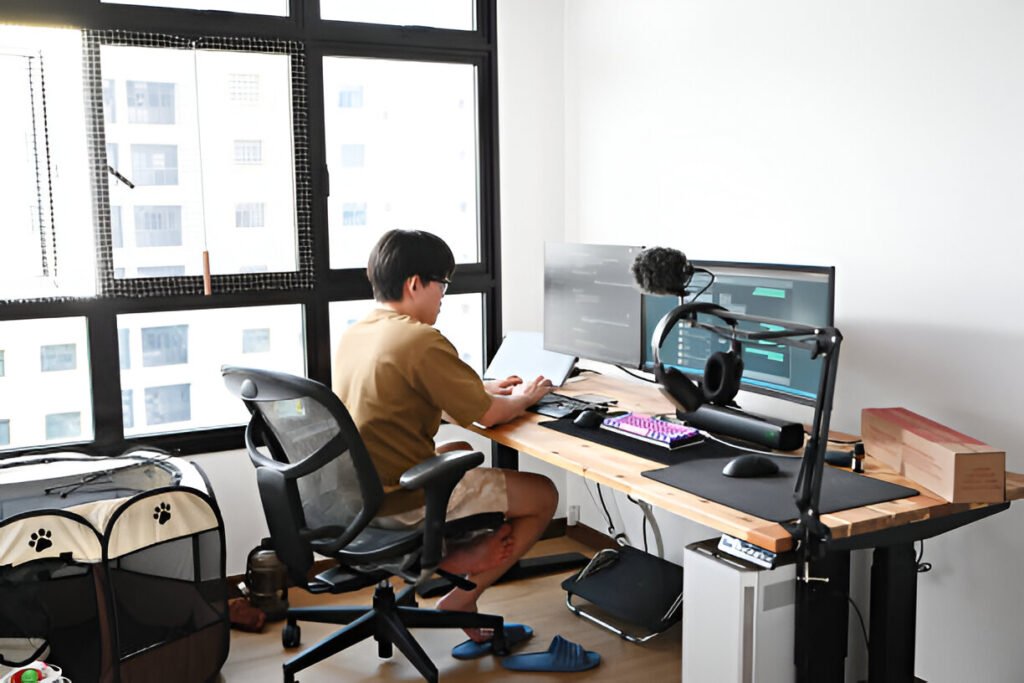
I’ve been working from home for years now, and figuring out the right dual monitor home office layout changed everything. You don’t just slap two screens on a desk and call it done. When you add that second monitor, you need to rethink desk depth, viewing angles, and window placement because each element directly impacts your comfort. Most people make the same mistakes I did by cramming monitors onto small desks, sitting too close, and wondering why their neck hurts after three hours.
Key Takeaways:
- Dual monitors need 55-60 inches desk width and 28-30 inches depth minimum
- Position screen tops at or below eye level, 20-30 inches from your eyes
- Place monitors perpendicular to windows to eliminate glare
- Primary monitor sits directly in front, not off to the side
- Small rooms benefit from wall-facing setups with monitor arms
Why Do Dual Monitors Change How Your Home Office Should Be Designed?
Adding a second monitor isn’t just about plugging in another screen. It changes the physics of your entire workspace. Research shows that dual monitors can boost productivity by 43%, though this advantage only materializes when the ergonomic setup is dialed in correctly. Without proper positioning, you end up trading that productivity gain for chronic pain.
Dual monitors demand horizontal desk space that single-screen setups don’t need. Two 24-inch monitors placed side-by-side take up roughly 42 inches of width before you even add bezels, stands, or breathing room for your mouse and keyboard.
Because you’re now rotating your head between two screens hundreds of times per day, wrong angles create a compounding strain effect on your neck muscles throughout the workday.
The viewing distance changes too. With dual screens, you’re processing visual information across a wider field of view. That wider spread means your eyes work harder to maintain focus, especially if one monitor is closer than the other or positioned at a different height. Proper depth and alignment become critical factors in reducing that strain.
The weight distribution also matters more than people realize, since two monitors with stands can add 15-30 pounds to your desk, which affects stability on cheaper furniture and requires more robust support structures.
What Are the Core Principles of an Effective Dual Monitor Layout?
1. Visual Ergonomics and Neck Alignment
Your eyes should hit the top third of your primary monitor when sitting upright with a relaxed neck, which creates a natural 15-degree downward gaze that reduces neck strain. In contrast, looking upward forces neck muscles to work constantly and creates tension that builds over hours.
The neutral eye line is simple: when you look straight ahead without tilting your head, that’s where the top of your screen should land, which for most people sits 2-3 inches below the monitor casing top. Beyond vertical positioning, you need to consider horizontal spacing with viewing distance standards at 20-30 inches from your eyes to the screen.
For horizontal versus angled alignment, there’s no universal answer. If you use both monitors equally, keep them side-by-side and symmetrical so you’re positioned centrally between them. If you have a primary screen for most tasks and a secondary reference display, center the primary monitor directly in front of you and angle the secondary inward 15-30 degrees to reduce neck rotation.
2. Desk Depth, Width, and Load Capacity
Moving from ergonomic viewing requirements to physical workspace dimensions, you need sufficient desk real estate to support proper monitor positioning. You need space for monitor stands or arms, plus room for your keyboard to sit comfortably without pushing screens too far back, which is why minimum desk depth for dual monitors sits at 24 inches while 28-30 inches works better.
Desk width requirements by monitor size:
- Dual 24-inch monitors: 55 inches minimum
- Dual 27-inch screens: 60-63 inches minimum
- Ideal comfortable tier: 70-72 inches (provides room for speakers, notebooks, or coffee without feeling cramped)
Weight distribution matters when selecting desk quality. Most standing desks handle 50-100 pounds in terms of raw capacity, but cheap stands without proper weight distribution create wobble when typing even if they technically support the weight.
3. Cable Management as a Structural Requirement
Power routing affects where you can place monitors. For instance, if your desk is against a wall with outlets at floor level, you’ll need cable length that accounts for height-adjustable desks that move up and down. Running cables behind the desk or through grommets keeps them out of sight and prevents tangling.
Data cables like HDMI, DisplayPort, and USB-C need to be long enough to reach your computer without pulling tight, since tight cables create tension that can disconnect or damage ports over time.
What Are the Best Desk Layouts for Dual Monitors by Room Size?
1. Small Room or Bedroom Home Office Layout
Wall-facing desk configuration works best for tight spaces because it keeps everything within a 4-6 foot footprint, which is perfect for rooms 8×10 feet or smaller. Put the desk flush against the wall with monitors mounted or on compact stands to maximize the limited floor space available.
When your office doubles as a bedroom, compact monitor arms become essential because desk-mounted arms let you pull monitors forward when working and push them back against the wall when done, freeing floor space.
Vertical stacking offers another option that cuts horizontal width requirements by stacking one monitor above the other instead of side-by-side, which works well for coding or writing where you’re viewing long documents, though you’ll need to keep the top monitor low enough to avoid constant head tilting that would negate the ergonomic benefits.
2. Medium-Sized Room Layouts
Corner desk setups maximize dead space in 10×12 or 12×14 foot rooms. Placing an L-shaped desk in the corner gives you two work surfaces where one holds your primary monitor and keyboard while another accommodates your secondary screen and peripherals, with yourself positioned at one wing of the L-shape rather than the actual corner to maintain proper viewing angles.
L-shaped desk advantages are significant for dual monitor users because you get 120-140 inches of combined surface, which provides room to spread out paperwork, add a laptop dock, or keep a printer nearby. The perpendicular layout naturally separates task zones.
Peripheral zoning simplifies organization. Keep your keyboard and mouse on the primary surface, then use the secondary wing for charging cables, external drives, or audio gear to keep the main work area clean.
3. Large Home Office or Dedicated Room
Floating desk layouts work with 14×14 feet or more. Position the desk in the center or offset from walls to create walking space around all sides, which feels executive and gives flexibility to rearrange without moving furniture.
Centered desk versus wall-based comes down to workflow. Centered desks work for video calls where you want a clean background, while wall-based desks suit situations where you need pinboards, shelves, or reference materials within arm’s reach.
Collaboration-ready positioning means leaving space behind or beside your desk for a second chair. If clients or coworkers visit, you’ll want room for them to sit and view your screens without awkward angles.
What Are Your Dual Monitor Placement Options?
1. Side-by-Side Horizontal Alignment
Use cases for horizontal alignment include multitasking workflows where you’re jumping between email, Slack, spreadsheets, and browser tabs constantly. Having everything visible speeds up response time and keeps your mental context loaded.
Pros include symmetrical viewing angles and easy cursor movement between screens where your eyes track naturally left to right. Limitations show up when desk width is tight or when one monitor becomes a dedicated secondary display you only check occasionally.
2. Stacked Vertical Monitor Layout
Ideal tasks for vertical stacking include programming, writing, and document review where developers see more lines of code without scrolling and writers benefit from research on top and draft on bottom.
Neck and eye strain considerations are real. If the top monitor sits too high, you’ll tilt your head back repeatedly, so keep the top screen’s center no higher than eye level, avoiding upward angles beyond 15 degrees.
3. Primary + Secondary Angled Monitor Setup
Content creators and developers benefit most from this asymmetric layout where your primary screen sits directly in front for editing timelines, IDEs, or main documents while the secondary monitor angles 15-30 degrees to the side, holding reference materials or chat apps.
Cognitive load management improves when your brain knows where to look for specific information. Primary tasks stay centered while secondary info lives to the side, so you’re not scanning multiple equal-priority screens constantly.
How Should You Position Your Chair, Desk Height, and Input Devices?
1. Chair Height Relative to Dual Screens
Your chair height should position your feet flat on the floor with thighs parallel to the ground. From there, adjust monitor height so the top of the screen lands at or slightly below eye level, which creates a neutral spine position where your head balances naturally over your shoulders without forward lean.
2. Keyboard and Mouse Alignment With Monitor Centerline
Place your keyboard directly in front of your body, centered with your primary monitor, while your mouse should sit beside the keyboard within easy reach so no stretching is required. This alignment keeps your shoulders square and prevents the repetitive twisting that leads to RSI.
3. Sit-Stand Desk Adjustments for Dual Monitors
When standing, your elbow should form a 90-degree angle when your hands rest on the keyboard, which usually means raising the desk to around 42-48 inches for most people. Monitors should maintain the same eye-level relationship whether sitting or standing.
What Are the Best Dual Monitor Layouts by User Type?
1. Remote Workers and Professionals
Video calls demand that your camera sits at eye level, meaning your primary monitor where video conferencing lives should be directly in front while the secondary monitor holds calendar, email, or notes angled slightly to avoid the side-eye look during calls.
Multitasking workflows benefit from keeping communication tools visible on one screen while deep work happens on the other. Email, Slack, and Teams stay on the left while documents or design work stay on the right.
2. Students and Academic Workflows
Research versus writing screens is the natural split. Keep research papers, PDFs, or source materials on one monitor while your essay or notes occupy the other, which eliminates constant tab switching that breaks concentration.
Note-taking optimization works best when the note-taking app sits on your primary screen and lectures or reading materials display on the secondary monitor, so you’re actively engaging with one screen while passively referencing the other.
3. Content Creators and Editors
Timeline versus preview screens is standard for video editing where your editing timeline sits on the ultrawide primary monitor needing horizontal space while the secondary monitor shows your preview window, scopes, or asset browser.
Color accuracy positioning matters for photographers and designers. Your primary color-critical work should happen on the monitor with the best color calibration, positioned directly in front with optimal lighting.
What Are the Most Common Dual Monitor Layout Mistakes?
- Misaligned monitor heights create neck strain faster than anything else because if one screen sits 2 inches higher than the other, your head tilts slightly every time you switch between them. That small tilt adds up over eight hours, so use matching stands or monitor arms to level them perfectly.
- Desk depth miscalculations happen when people buy shallow desks thinking monitor arms solve everything, but you still need depth for your keyboard and mouse to sit comfortably without pushing screens too far back.
- Ignoring lighting angles is the biggest mistake. People put their desk facing a window, then wonder why their screen is washed out by sunlight, or they face away and get blinded by glare. Perpendicular to the window works best.
- Overcrowding peripherals reduces your effective work surface. If speakers, lamps, charging docks, and coffee mugs crowd the space between monitors and keyboard, you’ll sit farther back than ergonomically ideal just to make room.
How Do You Control Lighting and Monitor Glare for Dual Screens?
1. Natural Light Placement
Position your desk perpendicular to windows whenever possible, which puts natural light to your side rather than in front or behind. Light from the side provides even illumination without creating screen glare or forcing your eyes to adjust to competing brightness.
If perpendicular placement isn’t an option, face the monitor away from the window and use adjustable blinds to control direct sunlight. Facing the window directly creates brightness imbalance.
2. Artificial Lighting Zones
Task lighting should illuminate your keyboard and desk surface without reflecting off monitors. Position desk lamps behind or beside screens, angled toward your work area. Overhead lighting works best when diffused rather than direct because harsh downlights create screen reflections.
Ambient room lighting should match your monitor brightness to reduce eye strain. If your room is dim and screens are bright, your eyes constantly adjust, so balance them with soft background lighting.
Quick-Reference Tables and Layout Summaries
Table: Ideal Desk Dimensions for Dual Monitor Setups
| Monitor Size | Minimum Desk Width | Recommended Desk Width | Minimum Desk Depth | Recommended Desk Depth |
| Dual 24″ | 55″ | 60″ | 24″ | 28″ |
| Dual 27″ | 60″ | 65″ | 28″ | 30″ |
Table: Recommended Monitor Sizes vs Viewing Distance
| Monitor Size | Minimum Viewing Distance | Optimal Viewing Distance | Maximum Viewing Distance |
| 24″ | 20″ | 24″ | 30″ |
| 27″ | 24″ | 28″ | 35″ |
Bullet Summary: Optimal Dual Monitor Layout Checklist
- Desk at least 55″ wide and 28″ deep
- Monitors 20-30 inches from eyes
- Top of screen at or below eye level
- Monitors perpendicular to windows
- Primary monitor centered in front of body
- Secondary monitor angled 15-30 degrees inward
- Chair adjusted for flat feet, 90-degree elbows
Frequently Asked Questions About Dual Monitor Home Office Layouts
1. What Is the Best Desk Size for a Dual Monitor Setup?
A desk measuring 60 inches wide by 28-30 inches deep gives you comfortable space for dual 24-27 inch monitors plus peripherals. Going up to 63-65 inches wide provides extra room for speakers or documents. Standing desks should support 50-100 pounds to handle the combined weight of monitors and equipment.
2. Should Dual Monitors Be Centered or One Off to the Side?
It depends on usage patterns. If you use both screens equally, center them symmetrically so you’re positioned between them. If you have a primary monitor for 80% of tasks and a secondary for reference, center the primary monitor directly in front of you and angle the secondary to the side.
3. Is It Better to Mount Dual Monitors or Use Desk Stands?
Monitor arms free up desk space and offer precise height, tilt, and depth adjustments that basic stands can’t match. Arms work great for sit-stand desks where you need to reposition screens when changing heights. Stands work fine if your desk is deep enough and you don’t need frequent adjustments.
4. How Far Should Dual Monitors Be From Your Eyes?
Position monitors 20-30 inches from your eyes, roughly an arm’s length away. This distance reduces eye strain while keeping text readable. Larger monitors can sit slightly farther back, up to 35 inches for 32-inch screens. Adjust based on your eyesight and text size preferences.
Final Layout Optimization Summary
Getting your dual monitor layout right takes more than plugging in cables. The ergonomic fundamentals of desk dimensions, viewing distance, monitor height, and lighting placement determine whether your setup boosts productivity or creates chronic pain. Small tweaks make massive differences. Raising monitors two inches, angling your secondary screen inward, or moving your desk perpendicular to the window eliminates neck strain and eye fatigue.
Match your layout to your actual task patterns. If you’re writing code, vertical stacking might work better than horizontal. If you’re editing video, horizontal placement gives timeline space.
Content creators need different setups than remote workers taking video calls. Don’t force a layout because it looks cool. Build what serves your workflow.
Long-term comfort matters more than aesthetics. Your body adapts to whatever position you force it into, but that adaptation costs you.
Invest time now to dial in the ergonomics. Future you will thank you when you’re working pain-free after eight-hour days.