
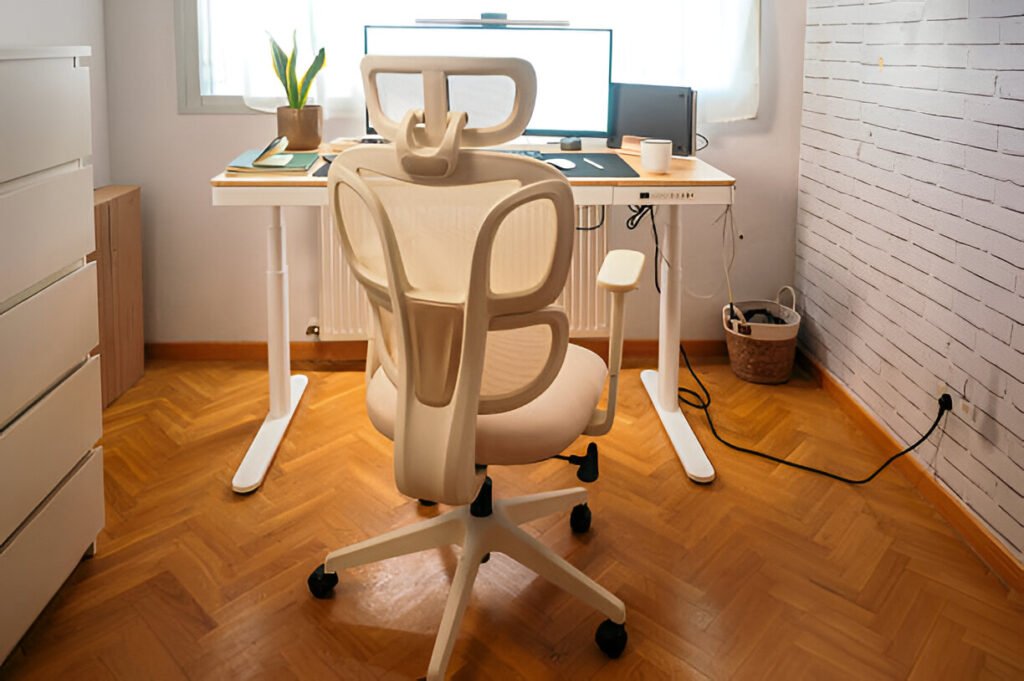
Working from home as a developer requires more than a laptop and WiFi. I’ve built multiple programmer-specific setups, and the equipment landscape is constantly shifting.
Hardware requirements increased, AI tools demand processing power, and display standards keep rising, making 2024 setups inadequate for current development demands.
This home office equipment checklist covers 2026 essentials by priority and budget, demonstrating strategic spending decisions that maximize value without waste.
Key Takeaways:
- 2026 development requires 32GB RAM minimum, 6-core CPUs for multitasking
- Ergonomic equipment prevents health issues, costing more than gear
- Power redundancy and internet backup are baseline requirements
- Budget tiers let you scale gradually without replacing everything
- Single points of failure cause more productivity loss than underpowered hardware
Scope, Assumptions, and 2026 Baseline
Before diving into the equipment, let’s establish what we’re working with. This guide specifically targets people who write code, debug systems, and ship software from home daily.
Who This Checklist Serves
This is for full-time developers working remotely, in a hybrid setup, or as freelancers, covering those who code for 6+ hours daily and need professional-grade reliability rather than hobbyist gear that fails under pressure.
What “Developer” Means in 2026
The term covers substantial ground across frontend, backend, mobile, DevOps, data science, and game development disciplines. I’m focusing on the common denominator: equipment that serves all these disciplines reasonably well without specialized requirements.
Constraints: Space, Budget, Power, Connectivity
Not everyone has a dedicated room or unlimited funds. I’m building this around typical constraints like apartments, shared spaces, standard residential power, and consumer-grade internet connections.
Core Computing Hardware
Your machine is obviously the foundation of everything. But in 2026, the requirements have shifted significantly compared to even two years ago, making previously acceptable configurations inadequate for current demands.
Primary Machine Selection
The laptop-versus-desktop debate hasn’t died, and honestly, it shouldn’t. Each has clear advantages depending on your workflow and living situation.
I’ve used both extensively at different points in my career, and the right choice depends on your specific circumstances.
Laptops offer portability and a built-in battery-powered UPS. You can work from anywhere, take them to meetings, and you won’t lose work during brief power cuts.
The thermal limits and upgrade constraints represent significant tradeoffs since you’re essentially locked into your initial purchase configuration.
Desktops deliver better performance per dollar, superior cooling for sustained workloads, and easy component swaps.
When your GPU fails after three years, you replace just the GPU rather than the entire system, avoiding the substantial cost of a full system replacement.
Mini-PCs offer a compact form with surprising power, fitting tight spaces while delivering respectable performance, though you sacrifice PCIe expansion slots and upgrade flexibility in exchange for space savings.
Laptops vs Desktops vs Mini-PCs
Laptops excel for portability and client meetings, and battery backup prevents lost work during brief power cuts, making them ideal if you travel frequently or work from coffee shops.
Desktops maximize performance and cooling for heavy compilation workloads, rendering, or running multiple VMs simultaneously.
Mini-PCs fit tight spaces while delivering respectable power, though you sacrifice PCIe expansion slots and full-size component options.
For most developers, I’d recommend desktops for primary workstations with capable laptops for mobility. That combination gives you flexibility without compromising on either front.
CPU, GPU, RAM, Storage Minimums for 2026
| Component | Entry Minimum | Professional Target |
| CPU | 6-core (Ryzen 5/i5) | 8-core+ (Ryzen 7/i7) |
| RAM | 32GB DDR5-5600 | 64GB DDR5-6000 |
| GPU | Integrated graphics | Dedicated GPU 8GB VRAM |
| Storage | 1TB NVMe Gen4 | 2TB NVMe Gen4 + HDD |
These represent 2026 baselines for comfortable development. AI coding assistants, containerization, virtual machines, and modern IDEs all demand substantial memory.
Running Docker, VS Code, Chrome with 20 tabs, and Slack simultaneously on 16GB creates a painful, sluggish experience.
Secondary Devices
Tablets for documentation review, old phones for mobile testing, and maybe a spare laptop for client demos or testing different environments serve essential functions when you ship cross-platform products, since testing on real devices catches issues that emulators miss.
Budget $200-500 for a small collection of test devices, depending on what platforms you target most frequently.
Upgrade Cycles and Future-Proofing
Plan for a 3-4-year primary machine lifespan before major upgrades are necessary. Avoid chasing bleeding-edge CPUs the moment they launch, as they depreciate quickly and offer minimal real-world advantages.
Mid-range current-gen hardware offers the best value proposition, since the performance difference between top-tier and mid-tier chips is minimal in practice for development work.
Consider buying slightly more RAM and storage than you need today, since requirements creep up faster than expected.
Noise, Thermals, and Power Efficiency
Developers work weird hours, often late into the night. A jet-engine PC at 2 am will destroy relationships with anyone you live with, something I learned during my first apartment when my cooling setup kept roommates awake.
Prioritize quality cooling solutions, consider undervolting your CPU for lower temperatures, and avoid reference-design GPUs if you need discrete graphics for any reason.
Power efficiency matters for laptop battery life during travel and desktop electricity costs over the long term.
Display and Visual Ergonomics
You stare at screens for 8-10 hours daily. Display setup directly impacts productivity and eye health.
Monitor Count and Resolution Strategy
The debate over ultrawide versus dual-monitor configurations continues. Dual monitors provide flexibility for different orientations and easier window snapping. One vertical, one horizontal works great for some workflows.
Ultrawides deliver a seamless workspace without bezels interrupting the view. Triple setups create neck strain from excessive head turning.
For coding, one 34-inch ultrawide or two 27-inch displays work best, providing adequate real estate for IDE, terminal, browser, and documentation simultaneously.
Panel Types and Refresh Rates
IPS panels remain standard for accurate colors and wide viewing. VA panels offer better contrast but slower response.
For development, a refresh rate above 60Hz isn’t critical unless you’re doing game dev testing. Save on refresh rate, invest in resolution and panel quality instead.
Monitor Arms and Desk Mounting
Monitor mounting solutions transform workspace ergonomics. Desk-mounted arms free surface area and allow precise height and angle adjustments, reducing neck and eye strain significantly. Look for arms with built-in cable management channels.
Color Accuracy for Creators
Frontend, design systems, or visual work requires color accuracy. sRGB coverage should be 99%+ minimum. Professional color needs DCI-P3 coverage and hardware calibration.
Input Devices and Human Interface
Keyboards and mice are where developers develop strong, sometimes irrational preferences. I’ll lay out the considerations for making informed choices that work for your hands specifically.
Keyboards
The mechanical keyboard world has exploded over the past few years. Low-profile switches, split ergonomic layouts, hot-swappable options, and custom keycaps create overwhelming options if you’re just getting started.
| Type | Pros | Cons | Best For |
| Mechanical | Tactile feedback, durability | Noise, price | Heavy typists |
| Low-profile | Quiet, travel-friendly | Less tactile | Minimalists |
| Split ergonomic | Reduces wrist strain | Learning curve | RSI prevention |
I’ve been using split ergonomic keyboards for years now after developing wrist pain from standard layouts during a particularly intense project.
The adjustment period sucks: two weeks of slower typing can be frustrating when you’re trying to hit deadlines and ship features, but the long-term payoff for wrist health makes the temporary productivity hit worthwhile. My wrist pain disappeared completely within a month of switching.
Pointing Devices
Most developers use mice, and that’s perfectly fine. Some swear by trackballs for ergonomic benefits. A few use pen tablets exclusively, though I’ve never understood that workflow personally.
Vertical mice help with wrist pronation if you’re developing RSI symptoms or want to prevent them. Gaming mice work particularly well for development because the extra buttons can be programmed for common actions.
I’ve got git commit, git push, and terminal toggle mapped to thumb buttons, which saves dozens of keystrokes and accumulates 15-20 minutes daily once you optimize your workflow.
Auxiliary Inputs
Stream decks and macro pads are no longer just for streamers and content creators.
When you’re running the same git commands, build scripts, or deployment sequences repeatedly throughout the day, programmable buttons save significant time.
Foot pedals for push-to-talk during meetings keep your hands on the keyboard for taking notes.
Accessibility and Fatigue Reduction
Voice coding tools have improved dramatically over the past two years. If you experience any repetitive strain injuries or notice early warning signs, explore voice-to-code options before the problem becomes chronic and requires medical intervention.
Accessibility features help everyone, not just people with disabilities. They’re worth investigating regardless of your current physical condition.
Audio, Video, and Communication Stack
Remote work means lots of video calls throughout the day. Your audio and video quality directly impacts how colleagues perceive your professionalism and attention to detail.
Microphones and Audio Interfaces
Built-in laptop mics produce terrible audio quality. USB microphones like the Blue Yeti or Audio-Technica AT2020 deliver massive quality improvements for a $100-150 investment.
If you’re on calls for 3+ hours per day, consider an XLR setup with an audio interface for better audio quality.
This is overkill for most developers but appreciated by audiophiles and frequent presenters who want professional, studio-quality output.
Headphones and Speakers
Closed-back headphones perform best in noisy environments, while open-back models offer more comfortable, isolation-free listening during long coding sessions.
Decent speakers are nice for when you’re not on calls, but headphones get more use in practice for most remote workers.
Budget $100-200 for solid options that won’t fatigue your ears during marathon debugging sessions.
Cameras and Lighting
4K webcams are becoming standard equipment for remote workers. The difference between 1080p and 4K on video calls is noticeable when participants have good displays, though it matters less for quick standups. Lighting matters more than camera quality, though.
A $30 ring light or LED panel can significantly improve any camera’s performance by eliminating shadows. Position lights to avoid harsh shadows on your face, natural side lighting works best if you have windows.
Acoustic Treatment Basics
Acoustic foam panels help reduce echo, but aren’t a magic solution. Heavy curtains, bookshelves filled with books, and soft furnishings do most of the work, dampening echo and reverb at a lower cost than foam panels.
Desk, Chair, and Physical Ergonomics
I used to ignore ergonomic principles until back pain forced me to pay attention to these critical setup elements. Learn from that experience rather than repeating it.
Desks and Work Surfaces
Desk size matters more than expected, since you need space for monitors, a keyboard, a mouse, a notebook, and elbow room, which requires a minimum width of 120cm and preferably 150cm or more.
Fixed vs Sit-Stand Desks:
- Fixed cost is lower, offering better stability for heavy monitor setups
- Standing desk options reduce sedentary time but require adjustment periods
- Electric standing desks with memory presets are worth a premium over manual crank versions
- Standing all day is as bad as sitting all day, so alternate between both positions
Chairs and Posture Support
You must invest properly here. Quality office chairs help prevent back problems and cost far more than the chairs themselves. Herman Miller, Steelcase, and Haworth make chairs lasting decades, available at significant discounts through used office furniture stores. Gaming chairs often have poor ergonomics despite marketing claims and should be avoided. Look for adjustable lumbar support, armrest height and width adjustment, seat depth adjustment, and breathable materials.
Footrests, Monitor Height, Reach Zones
Position monitors at or slightly below eye level while placing the keyboard and mouse to maintain 90-degree elbow angles. Use footrests if your chair can’t adjust low enough, and keep everything you use frequently within arm’s reach.
Small-Space Layout Tactics
Corner desks maximize limited space. Wall-mounted monitor arms keep surfaces clear. The folding desk is truly space-constrained, though stability suffers.
Power, Connectivity, and Reliability
System downtime directly reduces developer productivity and income, making redundancy essential for professional setups.
Internet Redundancy
Single ISP dependency creates unacceptable risk. Available backup options depend on your location; cable plus a 5G mobile hotspot covers most failure scenarios. Starlink works in rural areas where terrestrial options fail. Test your backup solution before you actually need it during an outage.
Power Protection
UPS systems provide a graceful shutdown during outages and protect against voltage fluctuations that can damage hardware.
| Load (Watts) | Minimum UPS Rating | Runtime Target |
| 300W | 600VA / 360W | 15 minutes |
| 500W | 1000VA / 600W | 15 minutes |
| 800W | 1500VA / 900W | 10 minutes |
Calculate your actual power draw before buying, including monitors, modem, router, and PC in your total load calculation. Pure sine-wave output better protects sensitive electronics than a simulated sine wave.
Cable Management and Hubs
Disorganized cables create constant friction in your workflow through tangled connections and difficult troubleshooting. Velcro ties, cable raceways, and under-desk trays keep things organized. Thunderbolt docks or USB-C hubs consolidate connections, allowing a single-cable setup that makes docking and undocking faster.
Travel and Mobile Continuity
Cloud sync, portable SSDs, and laptop docking stations enable seamless context switching between locations.
Software, OS, and Security Essentials
Hardware provides the foundation, but software choices significantly impact daily workflows.
Operating Systems and Virtualization
Most developers use macOS, Linux, or Windows with WSL2. macOS offers Unix-based development with a polished UX but comes with a higher upfront cost. Linux provides maximum control and customization but requires more maintenance. Windows with WSL2 bridges both reasonably well. Docker and virtual machines demand RAM and CPU headroom.
Development Toolchains
VSCode dominates, but IntelliJ, Vim, and Emacs have devoted followings. Git is non-negotiable regardless of stack. Specific language ecosystems determine additional tooling.
Security Stack
VPN for public WiFi, password manager for credential hygiene, 2FA on critical accounts, and automatic security updates. Developers are high-value targets for credential theft.
Backup and Version Control Hygiene
Code lives in Git repositories, but configs, scripts, and local databases require automated backup solutions to prevent catastrophic data loss when drives inevitably fail.
Environment, Focus, and Productivity Enhancers
Your physical environment affects cognitive performance more than most realize. Here are some ways you can improve your productivity while working from home
Lighting and Circadian Considerations
Natural light exposure helps maintain normal sleep cycles. During evening work, warmer colour temperatures reduce blue light, disrupting sleep. Smart bulbs or adjustable desk lamps give control over lighting throughout the day.
Climate, Air Quality, and Noise Control
Maintain a comfortable temperature around 20-22°C for optimal focus. Air quality matters for sustained concentration, so consider air purifiers if you have allergies or live in urban areas with poor air quality. White noise machines or noise-cancelling headphones block distractions from roommates or street noise.
Focus Aids and Distraction Barriers
Physical separation between work and living space helps establish boundaries. When not possible, visual cues like a specific desk lamp turning on only during work hours trigger focus mode psychologically.
Minimalism vs Tool Abundance
Some developers thrive with minimal setups, while others need every gadget. Match equipment to actual workflow rather than aspirational ideals.
Budget Tiers and Build Paths
Not everyone starts with unlimited funds or a blank check from their employer. Here’s how to scale up strategically over time.
Entry-Level Setup
$1500-2000 total gets you started properly without breaking the bank. Mid-range laptop or desktop with 32GB RAM, a single-quality monitor at least 27 inches, a basic mechanical keyboard, a decent mouse, and an entry-level ergonomic chair cover. Functional requirements: efficiently.
Mid-Range Professional Setup
Upgrades in the $3000-4500 range significantly improve the chair’s durability, add a second monitor or ultrawide display for better multitasking, improve audio with a dedicated mic for clearer communication, add UPS backup for power protection, and increase storage capacity substantially. Most full-time remote developers should aim for this tier once they’re established and understand their specific workflow needs.
High-End / Creator-Developer Hybrid
$6000-8000+ is justified when you’re also doing content creation, 3D work, machine learning, or other resource-intensive tasks beyond standard development workflows. This tier includes top-tier ergonomic chairs like Herman Miller or Steelcase, dual 4K displays or premium ultrawide monitors, high-end desktops with 64GB+ RAM for heavy workloads, professional audio and video gear for streaming or presentations, standing desks with electric adjustment, and comprehensive backup systems.
| Category | Entry Budget | Mid-Range Budget | High-End Budget |
| Computer | $800-1200 | $1500-2000 | $2500-3500 |
| Displays | $200-300 | $600-900 | $1200-1800 |
| Peripherals | $150-250 | $400-600 | $800-1200 |
| Furniture | $350-450 | $900-1200 | $1800-2400 |
| Everything Else | $200-300 | $600-800 | $1200-2100 |
Common Mistakes and 2026-Specific Pitfalls
I’ve seen developers waste money on unnecessary equipment while skipping important components.
- Overbuying specs: 128GB RAM is unnecessary unless running massive VM clusters. Instead, buy for your actual needs plus 25% headroom. An RTX 5090 represents overkill for standard development work.
- Ignoring ergonomics: Saving $300 on a chair can lead to thousands in physical therapy costs later, because your physical health isn’t negotiable and proper ergonomics should take priority over flashy gear.
- Single points of failure: Lacking internet backup, UPS protection, or offline documentation can prevent work entirely. Redundancy investments cost less than the income lost during extended downtime.
- Trend-chasing hardware: RGB lighting, glass cases, and the newest CPU on launch day don’t improve code quality or productivity.
Final Home Office Equipment Checklist Summary
One-Page Home Office Equipment Checklist
- Computing: Desktop/laptop meeting 2026 specs
- Display: Two monitors or ultrawide, monitor arms
- Input: Ergonomic keyboard, quality mouse
- Audio/Video: USB mic, headphones, webcam, lighting
- Furniture: Adjustable chair, adequate desk
- Power/Network: UPS, ISP plus backup
- Software: OS with toolchain, security stack
Maintenance and Review Cadence
Conduct quarterly audits to catch problems early. Address dust buildup every 3 months, maintain the current firmware, and proactively replace worn peripherals before they fail completely.
Home Office Equipment Checklist: Frequently Asked Questions
What Equipment Do I Need for a Home Office Setup When Working Remotely?
Essential equipment includes a reliable computer that meets development requirements, a high-quality monitor, an ergonomic keyboard and mouse, a comfortable chair with lumbar support, adequate desk space, reliable internet with a backup connection, and UPS power protection for a graceful shutdown during outages.
How Do I Create a Productive Home Office Environment?
Start with ergonomics: prevent physical strain; provide adequate lighting that adjusts to the time of day; create physical boundaries between work and living spaces when possible; minimise distractions through noise control; maintain an organised workspace with proper cable management and storage; and keep a comfortable temperature for sustained focus.
What Are the Essential Tools and Tech for Remote Work?
Beyond computer and internet connection, you need quality communication hardware, including dedicated microphones and webcams for professional presence, version control systems for code management, backup solutions preventing data loss from hardware failures, security tools, including VPN and password manager for protecting credentials, and project management platforms for team coordination.
Do I Need an Ergonomic Chair and Desk for My Home Office?
Yes, because poor posture during 8+ hour workdays leads to chronic pain requiring expensive physical therapy. Ergonomic chairs prevent back and neck problems while proper desk height prevents wrist and shoulder strain, making the investment in quality furniture more cost-effective than treating resulting injuries.