Home Office Equipment Essentials for a Productive Home Workspace
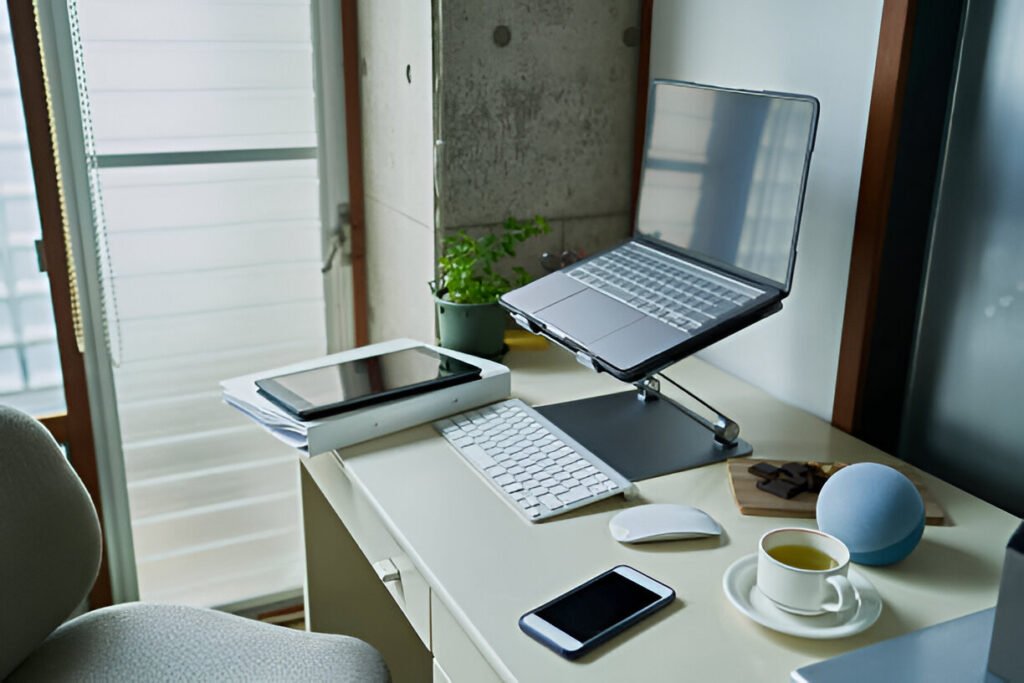
Setting up a home office requires more than just furniture. The right equipment determines productivity, comfort, and quality of work. Your computer, monitor, keyboard, and connectivity tools directly affect daily performance.
Understanding the essential equipment for your home office helps prevent overspending and enables you to build an effective workspace on any budget.
This guide identifies true essentials so you can create a functional home office tailored to your needs.
Key Takeaways:
- Home office equipment includes technological and functional tools, not furniture
- Core essentials cover computing, input/output, communication, and connectivity
- Ergonomic equipment reduces physical strain and improves long-term productivity
- Equipment needs vary significantly by user type (remote worker, student, creator)
- Most equipment lasts 3-10 years depending on usage and maintenance
What Is Home Office Equipment?
Home office equipment covers the tools you use to actually get work done from home.
Unlike home office furniture, which supports your body and workspace, equipment does the active work by processing information, handling communication, and producing results.
This includes things like devices that compute, display, capture, transmit, protect, or organise your work materials.
The distinction matters because equipment usually needs power, becomes outdated as technology changes rather than wearing out physically, and directly affects whether you can do your job on any given day.
What Defines a Functional Home Workspace
A functional home workspace helps you get your work done while keeping your body comfortable and your setup stress-free. You don’t need every new gadget on the market. What matters is choosing equipment that fits the kind of work you actually do.
A video editor needs different tools than someone who mostly answers emails, just like a student’s setup won’t look the same as a remote developer’s.
At its core, functionality comes down to reliability. When you work from home, your equipment must perform consistently, connect easily, and hold up over time.
You usually can’t rely on an IT department to fix problems on the spot, so your setup needs to support you without constant troubleshooting or replacements.
With so many people now working remotely or on hybrid schedules, having the right home office equipment matters more than ever.
A poorly chosen setup can disrupt your workflow and drain your focus, while the right tools help you stay productive throughout the day.
Research on workplace ergonomics shows that when people use equipment designed for comfort and efficiency, they tend to be more productive, miss fewer workdays, and stick with their jobs longer.
Those benefits don’t come from complicated setups. They start with simple, well-chosen equipment that supports focus, comfort, and the way you actually work.
Equipment Selection Constraints
A few practical limitations determine which equipment will actually work in your home office.
Your budget usually comes first, shaping whether you buy the latest gear or go with older models that still deliver solid performance for much less money.
The space you have also matters, since it determines whether you can fit a desktop tower and dual monitors or need to stick with a laptop-only setup.
Power is another key factor, especially in older homes with limited outlets or in areas where outages happen often.
Noise tolerance also matters if you share your workspace or record audio, because mechanical keyboards and desktop fans can be more distracting than quieter alternatives.
Understanding Home Office Equipment vs Furniture
Home office equipment refers to the tools and devices that directly support work tasks in a home-based setup.
These are functional, job-related items designed to process information, communicate, produce output, or maintain a reliable working environment.
In practical terms, equipment is defined less by whether it uses electricity and more by whether it actively enables you to do your work.
Most home office equipment falls into a few clear categories:
- Computing: desktops, laptops, tablets, and peripherals
- Display: monitors, screens, and projectors
- Input: keyboards, mice, trackpads, graphics tablets
- Communication: webcams, microphones, headsets, speakers
- Output: printers, scanners, copiers
- Networking: routers, modems, Wi-Fi extenders
- Power: surge protectors, uninterruptible power supply (UPS) units
- Lighting: desk lamps, monitor light bars
- Organization: cable management tools and related accessories
In practical terms, a monitor used for daily work, an ergonomic keyboard that reduces wrist strain, and a surge protector that protects equipment from power surges all qualify as home office equipment because they directly support productivity, comfort, and reliability.
How Does Office Equipment Differ From Office Furniture?
Office equipment and office furniture serve different purposes in your workspace. Equipment uses technology to help you perform work tasks, while furniture supports your body and organizes the physical space around you.
This difference matters when you plan your budget, handle taxes, or think ahead about replacements.
Furniture includes items like desks, chairs, tables, and shelving, which create the physical structure of your workspace.
|
Characteristic |
Equipment |
Furniture |
|
Primary function |
Performs work tasks using technology |
Provides physical support and storage |
|
Power requirement |
Usually requires electricity |
Does not require power |
|
Typical lifespan |
About 3–10 years |
About 7–15 years |
|
Replacement frequency |
Higher due to technology changes |
Lower, mainly due to wear and tear |
In simple terms, your chair supports your body, and your computer runs the software you need to work. Once you understand this split, you can plan spending more clearly and predict when different items will likely need replacing.
Core Home Office Equipment Essentials
Computers and Computing Devices
Your computer is the heart of your home office. Most other devices either connect to it or exist to help it work better. Choosing the right computer depends on how you work, how much power you need, how often you move around, and how much space you have.
Should You Choose a Desktop or Laptop for Your Home Office?
Desktops give you more processing power for your money and let you upgrade components like RAM, storage, or graphics cards, which can extend their lifespan. They handle heavy workloads better thanks to superior cooling systems.
The trade-off is that desktops aren’t portable and usually need separate peripherals like monitors and keyboards.
Laptops, on the other hand, are all-in-one devices that make moving around easy.
They include a built-in display, keyboard, and battery, so you can keep working during power interruptions.
They take up less desk space but usually have limited upgrade options and, in many cases, a shorter lifespan than desktops.
|
User Type |
Best Choice |
Why |
|
Remote workers |
Laptop with external monitor |
Lets you move occasionally while keeping a full desk setup |
|
Students |
Mid-range laptop |
Offers campus portability with enough power for coursework |
|
Content creators |
High-performance desktop |
Handles heavy editing and rendering tasks efficiently |
For most remote workers, pairing a laptop with an external monitor strikes the right balance: you get the flexibility to move when needed without sacrificing the full functionality of a desktop setup.
What Monitor Setup Do You Need for Your Home Office?
Adding an external monitor gives you a lot more workspace than just using a laptop screen.
A 27-inch QHD monitor (2560×1440) strikes a good balance between screen space and clarity for most office tasks, keeping text sharp without requiring scaling adjustments.
Single monitors are great for focused work, such as writing or coding. Dual monitors come in handy when you need to reference multiple documents, compare data, or keep an eye on communication while working.
|
Monitor Size |
Resolution |
Best For |
Recommended Viewing Distance |
|
24 inches |
1920×1080 (Full HD) |
Basic tasks, tight spaces |
24–36 inches |
|
27 inches |
2560×1440 (QHD) |
Standard office work |
27–40 inches |
|
32 inches |
3840×2160 (4K) |
Creative work, data visualization |
32–48 inches |
As monitors get bigger, resolution matters more. A 24-inch screen looks fine at 1080p, but that resolution stretched across 32 inches starts to show pixels. If you do visual work like photo editing, 4K gives the detail you need.
How to Position Your Monitor
Keep the top of your monitor at or just below eye level to avoid neck strain. A simple monitor stand, which costs $20–30, usually does the job. Mounting arms cost more—around $100—but aren’t necessary for most setups.
Many people start with makeshift solutions like boxes, but a cheap stand gives the same ergonomic benefit and frees up space under your monitor for storage.
Keyboards and Inputing Devices
The keyboard you choose affects how fast and comfortably you type, and it can even impact your wrist health.
Mechanical keyboards have individual switches beneath each key, providing tactile feedback. They last a long time—often up to 50 million keystrokes—though they cost more and make audible clicks.
Membrane keyboards use pressure-sensitive pads. They’re quieter and cheaper, but they feel less responsive during long typing sessions.
Ergonomic features to focus on:
- Split or curved layouts to keep wrists in a natural angle
- Adjustable tilt to maintain a neutral hand position
- Wrist rests to reduce carpal tunnel pressure
- Low-profile keys to minimize finger travel
Split designs help prevent repetitive strain during long typing sessions. Mechanical keyboards also make typing more enjoyable—the tactile response and audible feedback make long hours at the keyboard feel less tiring, even if your speed doesn’t change.
Choosing Input Devices
A standard mouse works for most tasks, but using it all day can strain your wrists. Vertical mice hold your hand in a “handshake” position, which reduces forearm twisting. Trackpads are fine for laptops but can tire your hands during all-day desk work.
Graphics or pen tablets help with digital illustration and photo editing, but you can skip them if you don’t need drawing capabilities. Budget tablets from Wacom or Huion give professional functionality without the extra cost of a display tablet.
Device purposes:
- Standard mouse: general office work, affordable
- Vertical mouse: extended use, reduces strain
- Trackpad: laptop complement, saves desk space
- Graphics tablet: creative tasks, illustration, photo editing
Most people switch to ergonomic mice only after they start feeling discomfort. If you notice early signs of strain, addressing it right away can prevent it from turning into chronic pain that’s harder to fix.
Communication Tools
Webcams
Laptop cameras are suitable for casual calls but typically max out at 720p. But with external webcams, you get better video quality and greater positioning flexibility.
For most professional calls, 1080p at 30fps keeps your video clear without stressing your home internet.
If you’re streaming or creating content, 1080p at 60fps makes motion smoother but requires more bandwidth.
|
Resolution |
Frame Rate |
Use Case |
Required Bandwidth |
|
720p |
30 fps |
Casual calls |
1.2 Mbps |
|
1080p |
30 fps |
Professional meetings |
3 Mbps |
|
1080p |
60 fps |
Streaming, content creation |
6 Mbps |
Lighting has a bigger impact on video quality than camera specs. Even a cheaper webcam looks great with good lighting.
You want to position natural light so it hits your face from the front or side, and avoid placing windows behind you—they’ll turn you into a silhouette.
Audio Equipment
If you’re a remote worker or content creator, good audio makes it easier for others to hear you clearly and helps prevent background noise from disrupting the call.
Built-in laptop microphones pick up room noise and keyboard sounds, but with a dedicated headset or microphone with noise-cancellation features, you get cleaner, more professional audio.
|
Device |
Best For |
Notes |
|
USB headset |
Frequent calls |
All-in-one, noise isolation |
|
Desktop microphone |
Recording |
Superior quality, comfortable for long sessions |
|
Wireless earbuds |
Mobile calls |
Portable and comfortable |
|
Desktop speakers |
Ambient audio |
Not for private calls |
Know the difference between noise cancellation and noise isolation.
Noise cancellation reduces background noise so you can hear clearly, while noise isolation prevents your voice from leaking to others—a must for professional calls in shared spaces.
Comfort matters too: over-ear designs spread pressure evenly and reduce fatigue compared to on-ear alternatives.
Infrastructure
Networking Equipment for Your Home Office
For remote work, having a reliable internet connection matters a lot. Video calls require consistent bandwidth, so a stable 25 Mbps connection is better than an inconsistent 100 Mbps connection.
Your router takes the connection from your modem and distributes it to all your devices via Ethernet or Wi-Fi. Weak Wi-Fi signals can cause dropped calls and slow file transfers.
Here’s a quick overview of standard networking devices:
|
Device |
Function |
When Needed |
|
Modem |
Connects to your ISP |
Always (ISP-provided) |
|
Router |
Distributes connection to devices |
Always (creates Wi-Fi) |
|
Wi-Fi extender |
Boosts signal |
Weak office signal |
|
Mesh system |
Multiple access points |
Large homes or multiple floors |
If possible, run an Ethernet cable from your router to your desk. Wired connections provide the most reliable performance for critical work.
Protecting Your Home Office Equipment From Power Issues
Power problems can damage equipment faster than you realize. Voltage spikes from lightning or grid fluctuations can harm power supplies, monitors, and drives. Surge protectors absorb these spikes before they reach your devices.
Protection levels:
- Basic power strips: add outlets but offer no surge protection
- Surge protectors: block voltage spikes; look for ratings of 1000+ joules
- UPS units: provide battery backup during outages for complete protection
- Line conditioners: stabilize voltage for sensitive equipment
UPS batteries typically last 2–3 years before replacement, while the unit’s electronics can function for up to 10 years. Always check the joule rating—higher numbers provide greater protection capacity.
Ergonomic Equipment That Improves Comfort and Output
A good chair keeps you comfortable and prevents aches during long work sessions. With regular use, proper chairs last 7–10 years. Fabric chairs are the most durable; leather can last up to 10 years with proper care, and mesh chairs typically wear out faster.
Essential adjustments:
- Seat height: keep your thighs parallel to the floor and feet flat
- Lumbar support: fill the curve of your lower back
- Armrests: relax your shoulders, elbows at 90 degrees
- Seat depth: leave 2–3 inches between the seat edge and the back of your knees
Expensive doesn’t always mean better. Chairs in the $300–500 range often offer the same ergonomic adjustments as high-end models priced at $1,000. What matters most is finding a chair that fits your body, not the brand name.
Should You Get a Standing Desk?
Standing desks allow you to alternate between sitting and standing throughout the day. Sitting for 8 hours compresses your spine and slows circulation, while standing all day tires your legs. Switching positions every 30–60 minutes keeps you moving without wearing you out.
|
Desk Type |
Mechanism |
Pros |
Cons |
|
Manual crank |
Hand-turned |
Lower cost, no power |
Slow, requires effort |
|
Electric motor |
Button-controlled |
Fast, preset heights |
Higher cost, needs power |
|
Converter |
Desktop platform |
Affordable, portable |
Limited range, takes up desk space |
Electric desks cost more but get used more because the one-button adjustment makes switching positions easy. Manual cranks work well if you set the height and leave it there.
Standing desks work best with equipment that encourages movement—such as under-desk treadmills or pedals—because prolonged standing can become uncomfortable, which is why many standalone standing desks end up unused over time.
Ergonomic Accessories
You don’t need to replace your furniture to improve ergonomics. Small additions can make a big difference. Monitor arms, for example, lift your screen to eye level and free up desk space. Footrests support your posture when your chair doesn’t go low enough.
Strain reducers:
- Monitor arms: position screens at eye level and save space
- Footrests: support feet and improve circulation
- Keyboard trays: lower your keyboard, tilt slightly downward to reduce wrist strain
- Wrist rests: cushion hands and keep wrists neutral
- Document holders: hold papers at screen height
Footrests give huge comfort gains for a small cost. Even a $5–15 model can improve posture and circulation during long work sessions. Adding a few simple accessories can solve common ergonomic problems for anyone who spends long hours sitting.
Organization and Productivity Equipment
Cable Management
Tangled cables make your desk look messy and make moving, unplugging, or reconnecting devices cumbersome. You don’t need complicated systems—basic routing and containment handle most problems.
Cable solutions:
- Cable trays: mount under your desk to keep cords out of sight
- Cable sleeves: bundle multiple cords neatly together
- Cable clips: stick to desk edges to guide individual cables
- Velcro ties: group cables while keeping them easy to move
- Cable boxes: hide power strips and extra cable length
Cable management workflow:
- Plan where each cable should run.
- Group cables by destination.
- Use clips every 6–12 inches along long runs.
- Bundle related cables in sleeves and secure with Velcro straps.
Velcro straps alone can handle most cable management once your cables are grouped and routed.
Storage Equipment for Your Home Office
Even if most of your work is digital, you still deal with some paper. Scanners let you turn documents into digital files for backup and sharing. Filing solutions keep important documents accessible without cluttering your desk.
|
Approach |
Equipment |
Best For |
|
Primarily digital |
Scanner, cloud storage, backups |
Minimal paper, frequent sharing |
|
Hybrid system |
Scanner plus filing, organizers |
Mix of physical and digital |
|
Physical-focused |
Filing cabinets, label maker |
Jobs that require originals |
Scanners are affordable and practical for home offices. Even if you work primarily digitally, quickly scanning receipts or forms helps prevent paper from piling up.
Equipment That Supports Focus and Time Management
Digital tools dominate productivity tracking, but some physical devices help too. Timers give a visual countdown for focused work, and secondary displays show calendars without interrupting your main screen.
Productivity options:
- Pomodoro timers: create 25-minute focus blocks with a visual countdown
- Desk clocks: reduce constant phone-checking for the time
- E-ink displays: show static info like calendars or reminders without screen glow
These tools reduce distractions and make focus easier. A simple timer, for example, lets you concentrate on work without constantly wondering how much time is left.
Lighting and Environmental Control Equipment
Overhead lights often create glare on your screen and cast shadows on your keyboard. Task lighting gives you focused light exactly where you need it.
Monitor light bars sit on your screen and illuminate your desk without causing glare or taking up space.
Color temperature affects how light feels and can influence your sleep and alertness.
Measured in Kelvin, lower values produce warm yellow-orange light, while higher values produce cool blue-white light. Daylight is around 5500K.
|
Color Temperature |
Kelvin |
Feel |
Best Time |
|
Warm white |
2700–3000K |
Cozy, relaxing |
Evening |
|
Neutral white |
3500–4500K |
Balanced, natural |
Afternoon |
|
Cool white |
5000–6500K |
Alert, energizing |
Morning |
Lighting positioning tips:
- Eliminate shadows where you work without creating bright spots on screens
- Use side lighting or overhead bars rather than lights directly behind monitors
- Position natural window light to hit your face from the front or side
- Avoid windows behind you to prevent silhouetting
Controlling Noise
Open-plan homes or shared spaces can make it hard to concentrate. Kids, pets, roommates, and outdoor sounds all interrupt focus. Acoustic panels absorb echoes inside the room, and white noise machines mask background sounds.
Noise management tools:
- Acoustic panels: reduce echoes in the room
- Soundproof curtains: block outside noise from windows
- White noise machines: mask intermittent sounds
- Noise-canceling headphones: electronically block unwanted noise
Use acoustic panels for internal noise and white noise machines or noise-canceling headphones for outside sounds.
Environmental Control
Extreme temperatures can slow you down and affect your equipment. Computers generate heat, which builds up in small spaces. Air quality matters too—stuffy rooms make you drowsy, and dry air irritates your airways.
Environmental control equipment:
- Desk fans: keep air moving and cool your workspace
- Air purifiers: remove dust and allergens
- Humidifiers: add moisture to prevent dryness and static buildup
- Space heaters: warm just your office without heating the whole house
Small adjustments, like adding a desk fan or humidifier, make a big difference. They keep you comfortable, protect your equipment, and help you stay focused.
Home Office Equipment by User Type
Remote Workers
If you work remotely, reliable communication gear is your top priority. Being able to join video calls without glitches determines how well you collaborate with your team. Focus on performance over looks.
Performance-first checklist:
- Fast, reliable internet with Ethernet backup
- Quality webcam (1080p minimum) and microphone
- Second monitor for reference during calls
- Ergonomic chair and keyboard for all-day comfort
- UPS to prevent data loss during power outages
- Proper desk lighting for professional video
- Surge protector to safeguard your equipment
Set up your workspace to avoid single points of failure. Keep Ethernet ready in case Wi-Fi drops, and use an external webcam if your laptop camera looks grainy.
Students and Online Learners
Students need gear that handles coursework without breaking the budget. Prioritize affordability, portability, and specs that are “good enough.” Most of your work is writing papers and attending virtual lectures, not rendering 4K video.
Budget-focused essentials:
- Mid-range laptop for home, library, or dorm use
- Basic 24-inch 1080p monitor
- Affordable wireless headset for class participation
- Reliable mouse and keyboard combo
- Desk lamp for late-night studying
- Surge protector for dorm power issues
- USB drive or cloud storage for backups
Refurbished or previous-generation laptops work perfectly. Last year’s models drop 30–40% in price but still handle coursework easily. You rarely need the latest features for schoolwork.
Content Creators and Streamers
Creators need gear that captures and processes high-quality media. Your audience notices production value, so webcam quality, microphone clarity, and processing speed matter.
Production stack:
- High-performance desktop
- 4K monitor for color-accurate editing
- Professional microphone (USB condenser or XLR)
- DSLR camera with a capture card
- Key and fill lights for consistent illumination
- Graphics tablet for digital artwork or precise editing
- Large external storage for raw footage
- Acoustic panels to reduce echo and improve audio
Invest in equipment that delivers higher output quality. A $200 microphone makes your videos sound professional, and a color-accurate monitor ensures your edits look right on viewers’ screens.
RELATED: Home Office Setup Checklist: 11 Essentials for 2026
Optional vs Non-Essential Home Office Equipment
Some equipment can really improve your workflow, even if you don’t absolutely need it. Whether it’s worth buying depends on how often you run into the problems it solves.
Optional upgrades that actually help:
- Third monitor: great for developers, traders, or anyone juggling multiple streams of information
- Smart assistants: control timers, reminders, and basic tasks hands-free
- Mechanical keyboard: makes typing more comfortable for heavy writers
- Wireless charging pad: keeps cables off your desk
- Document camera: share books, diagrams, or printed documents during calls
These items can become essential depending on your situation. For example, a day trader tracking multiple tickers will get more value from a third monitor than most people.
Home Office Equipment to Skip
Marketing often pushes expensive gadgets that don’t actually improve productivity. They look cool, but they rarely help you get work done.
Overhyped equipment to avoid:
- Gaming chairs marketed for office use: usually don’t provide proper ergonomic support
- RGB lighting: doesn’t improve keyboard or mouse function
- Smart desks with app controls: cost hundreds more than manual desks with the same ergonomic benefits
- Wireless charging for peripherals: rarely solves real problems—wired connections already keep devices powered
- Premium desk organizers: look fancy, but sticky notes and basic trays work just as well
Before splurging, ask yourself if the item solves a real problem or just looks impressive. Focus on function over form to create a productive workspace without wasting money.
Equipment Lifespan, Maintenance, and Replacement Cycles
Knowing how long your equipment lasts helps you plan replacements and identify when issues signal end-of-life rather than a temporary glitch. Most office equipment lasts 3–10 years, depending on quality and usage.
|
Equipment Type |
Average Lifespan |
What Affects Longevity |
|
Desktop computers |
5–7 years |
Component quality, cooling, dust, usage |
|
Laptop computers |
3–5 years |
Battery health, handling, heat, usage patterns |
|
Monitors |
5–10 years |
Backlight, pixel wear, usage cycles |
|
Keyboards |
5–10 years |
Switch durability, cleaning, spills |
|
Mice |
3–7 years |
Click mechanism, sensor, cables |
|
Routers/modems |
3–6 years |
Firmware, heat, power cycling |
Cheap components fail faster than premium builds. Look at total cost of ownership, not just the upfront price.
When to Replace Your Equipment
Replace gear when it slows you down or causes discomfort, even if it still technically works. Wasting time on faulty equipment costs more than buying a replacement.
Signs your equipment is past its prime:
- Computer boots slowly or freezes during routine tasks
- Monitor dims or shows color shifts
- Keyboard keys stick, require extra force, or register double presses
- Mouse cursor jumps or lags
- Wi-Fi drops connections or runs inconsistently
- Chair adjustments no longer hold position
- Webcam shows grainy, dark, or distorted video
- Cables fray or disconnect frequently
Health warnings:
- Neck pain from monitor positioning
- Wrist pain from awkward keyboard angles
- Back pain from unsupported chairs
- Eye strain from poor lighting or glare
When to pull the trigger:
- Equipment consistently hurts productivity
- Repair costs exceed replacement
- Gear no longer fits your workflow
Don’t wait for total failure. Slowly declining performance wastes time every day. If you’re constantly troubleshooting, replacing the gear immediately gives you productivity gains that justify the cost.
Summary
To build a functional home workspace, pick equipment that actually fits your work and avoids common headaches.
Start with communication and computing essentials: a reliable internet connection, clear video and audio, and enough processing power.
Add ergonomic gear to your workspace to prevent strain during long sessions, and use organisational tools to keep your desk functional rather than cluttered.
Don’t buy stuff just because it looks cool or someone online recommended it. Your setup should solve your specific workflow problems.
Students, content creators, and remote workers all need different tools depending on their main tasks.
Figure out what you do most and where you run into problems, then get equipment that fixes those issues.
Plan for replacements by knowing how long gear usually lasts. Computers need updates every few years, monitors last longer, and networking equipment needs periodic upgrades to handle faster speeds. Budget for these in advance, instead of waiting for things to fail.
Take care of your equipment—clean it, store it properly, and use surge protection. That keeps it lasting longer and prevents early failures.
Your home workspace is an investment in how well you work, so choose gear that actually supports your productivity instead of just filling up your desk.
Frequently Asked Questions About Home Office Equipment
What Equipment You Really Need for a Home Office
What you need depends on your work, but most remote workers rely on:
- A reliable computer (laptop or desktop)
- Stable internet, ideally with a wired backup (router/modem)
- A good monitor for long screen sessions
- Keyboard and mouse for comfortable typing and navigation
- Webcam and microphone for video calls
- Task lighting to reduce eye strain
- Surge protector to keep your gear safe
These basics cover communication, completing tasks, and protecting your equipment. Everything else just enhances specific workflows and isn’t required for everyone.
How Often Should You Replace Home Office Equipment
- Replace laptops every 3–5 years, desktops every 5–7 years, depending on performance.
- Monitors last 5–10 years before backlight or panel aging affects image quality.
- Keyboards and mice last 3–10 years, depending on build and usage.
- Networking gear should be updated every 3–6 years as internet speeds and security needs evolve.
Swap out any equipment that slows your work, costs more to repair than replace, or no longer fits your needs.
Which Home Office Equipment Matters Most for Remote Work
Communication gear comes first. If your calls fail or your video looks bad, your professional credibility takes a hit.
Must-have communication tools:
- Reliable internet with backup options
- Webcam that delivers clear 1080p video
- Microphone or headset with clean audio
- Proper lighting so you look professional on camera
Once you’ve got communication covered, focus on ergonomics. A good chair, correctly positioned monitor, and comfortable keyboard and mouse keep you from straining during long work sessions.
What you need depends on your work, but most remote workers rely on:
- A reliable computer (laptop or desktop)
- Stable internet, ideally with a wired backup (router/modem)
- A good monitor for long screen sessions
- Keyboard and mouse for comfortable typing and navigation
- Webcam and microphone for video calls
- Task lighting to reduce eye strain
- Surge protector to keep your gear safe
These basics cover communication, completing tasks, and protecting your equipment. Everything else just enhances specific workflows and isn’t required for everyone.
- Replace laptops every 3–5 years, desktops every 5–7 years, depending on performance.
- Monitors last 5–10 years before backlight or panel aging affects image quality.
- Keyboards and mice last 3–10 years, depending on build and usage.
- Networking gear should be updated every 3–6 years as internet speeds and security needs evolve.
Swap out any equipment that slows your work, costs more to repair than replace, or no longer fits your needs.
Communication gear comes first. If your calls fail or your video looks bad, your professional credibility takes a hit.
Must-have communication tools:
- Reliable internet with backup options
- Webcam that delivers clear 1080p video
- Microphone or headset with clean audio
- Proper lighting so you look professional on camera
Once you’ve got communication covered, focus on ergonomics. A good chair, correctly positioned monitor, and comfortable keyboard and mouse keep you from straining during long work sessions.