
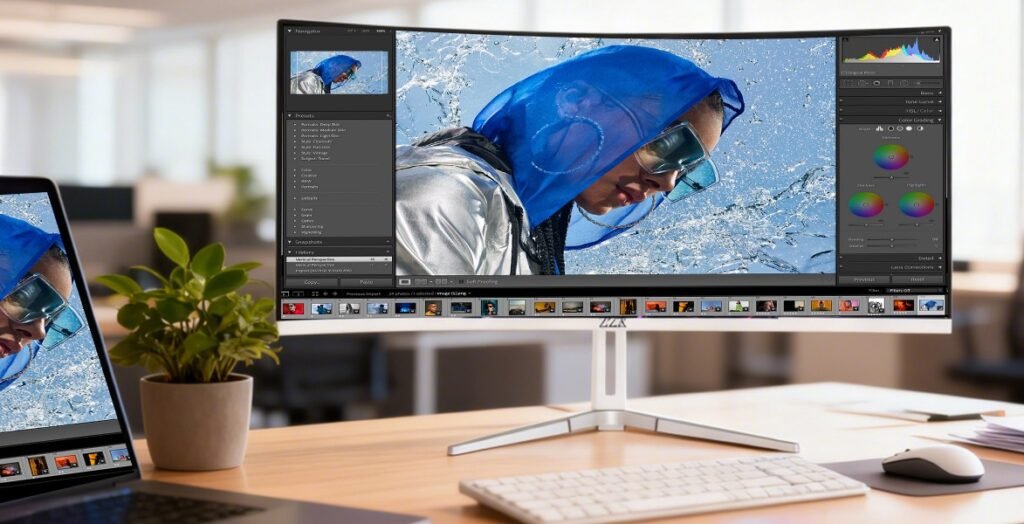
Working from home means your monitor setup isn’t just a nice-to-have anymore. It’s the foundation of your entire workday.
You’re staring at that screen for eight-plus hours, juggling Zoom calls, spreadsheets, and way too many browser tabs.
With that much time invested, your display choice becomes more than a preference; it’s infrastructure.
I’ve tested both ultrawide vs dual monitors extensively, and honestly? The “right” answer depends entirely on how you work.
After extensive testing, I’ve identified the factors that actually determine which setup works better, so you can stop second-guessing and start being more productive.
Quick Takeaways:
- Ultrawide monitors eliminate bezel gaps but require 80-100cm viewing distance and deeper desks
- Dual monitors cost less ($240-600 vs $300-1000+) and offer true task separation
- Both boost productivity: 52% increase with widescreen, 42% with dual setups
- Ergonomics matter because neck strain is real with ultrawides over 34 inches
- Your workflow should drive the decision, not hype
Quick Comparison Snapshot (Ultrawide vs Dual Monitors)
At-a-Glance Comparison Table
| Feature | Ultrawide Monitor | Dual Monitors |
| Screen real estate | 33% more horizontal space than standard 16:9 | Two full screens, mix resolutions if needed |
| Multitasking | Seamless window snapping, no bezel interruption | Physical separation, dedicated screen per task |
| Desk space | Requires 30″+ depth for proper viewing distance | Standard 24″ depth works, more width needed |
| Ergonomics | 80-100cm viewing distance required, potential neck strain | 50-75cm distance, easier head movement |
| Cost range | $300-1000+ for quality models | $240-600 for dual setup, depending on specs |
| Setup complexity | Plug-and-play, zero configuration needed | Display settings adjustment, potential compatibility issues |
| Portability | Single unit, easier to relocate | Two units plus stands or arms |
| Learning curve | 3-5 days average adaptation period | 5-7 days to optimize workflow |
| Best use cases | Video editing, timeline work, immersive gaming | Research-heavy roles, mixed tasks, screen sharing |
What Are Ultrawide Monitors and How Do They Work?
What Is an Ultrawide Monitor?
Ultrawide monitors stretch beyond the standard 16:9 aspect ratio. Most use 21:9, though super-ultrawides push to 32:9, delivering roughly 33% more horizontal space than traditional displays.
You’ll find these monitors in 34- and 49-inch sizes; a 34-inch ultrawide is roughly the height of a 27-inch standard monitor but significantly wider. Resolutions typically range from 3440×1440 (UWQHD) to 3840×1600.
Key Advantages of Ultrawide Monitors
No bezel cutting through your workspace. That uninterrupted canvas makes a tangible difference for timeline work or document comparison, letting your eyes glide across content without the cognitive reset that bezels create.
University of Utah research quantified this advantage: a 52% increase in productivity over single displays and an 18% increase over dual setups, demonstrating that the seamless experience reduces cognitive load when managing multiple windows.
Also, user surveys on platforms like Reddit report subjective boosts from ultrawides (e.g., 34-inch 21:9 for seamless window management)
For timeline-based work like video editing, music production, and project management, ultrawides shine by letting you view more of your project without constant scrolling, while curved models wrap around your field of view for added immersion.
Common Drawbacks of Ultrawide Monitors
Quality ultrawide monitors start around $300 and climb to over $1000, substantially more than pairing two budget monitors at $240-600 total.
Vertical space becomes constrained. The 21:9 aspect ratio reduces height for long documents, requiring more scrolling than dual monitors, especially since dual setups allow portrait orientation for full-page viewing.
Software compatibility remains inconsistent. Legacy applications and some games don’t scale properly, leaving black bars or stretched interfaces.
Beyond software issues, physical space becomes a factor. Ergonomic guidelines recommend an 80-100cm viewing distance, which requires desks at least 30 inches deep.
What Are Dual Monitor Setups, and How Do They Work?
What Is a Dual Monitor Setup?
Two separate displays connected to your computer, typically matching 24- or 27-inch monitors for visual consistency, though the setup accommodates mixing sizes, resolutions, and orientations based on specific needs.
Common configurations pair two 24-inch 1080p displays or two 27-inch 1440p screens horizontally, while others stack vertically to save desk space or mix a main 4K display with a smaller 1080p screen for communication tools.
Key Advantages of Dual Monitors
True task separation is the killer feature. You’re assigning entire displays to specific functions, like keeping email on the left while documents occupy the right, creating a physical boundary that helps compartmentalize tasks more effectively than software-based window division.
Beyond task separation, dual monitors offer greater configuration flexibility than ultrawides.
Rotate one monitor into portrait for long documents or mix resolutions with a 4K panel for precision work paired with 1080p for Slack, creating asymmetric configurations that ultrawide monitors simply can’t replicate.
Jon Peddie Research found that users achieved an average 42% increase in productivity. Their 15-year studies showed consistent adoption because people recognized genuine value.
Upgrading happens incrementally. Start with one monitor and add a second when the budget allows, avoiding the need to replace your entire display at once.
Common Drawbacks of Dual Monitors
The bezel gap between screens creates a persistent visual interruption, constantly breaking the illusion of a unified workspace.
Cable management becomes a project. Two power cables, two display cables, and USB connections create significantly more wire-management challenges than a single ultrawide, a complexity that persists even with dedicated cable-management solutions.
Alignment presents challenges. Getting both monitors at exactly the same height and angle requires patience and often a dual-monitor arm, since included stands rarely achieve perfect alignment.
Desk clutter increases. Two monitor bases occupy more desk space than one ultrawide stand, and they increase the number of components competing for space.
Ultrawide vs Dual Monitors: Which Setup Is Better for Productivity and Multitasking?
Window Management and Workflow
Ultrawides with built-in software, enhanced by tools like Windows PowerToys, let you snap windows into zones (thirds, quarters, or halves), but you’re dividing a single continuous space, where overlapping windows can occasionally interfere.
Dual monitors provide cleaner separation. Full-screen an application while keeping reference materials visible elsewhere without any window overlap. When video calling, dedicate one screen to the meeting while working on the other.
App switching differs, too. Ultrawides cycle through all windows in one pool.
Dual monitors let you keep frequently used apps permanently visible on the secondary display.
Task-Based Productivity Breakdown
- Coding and Development Ultrawides work exceptionally well. View the code editor, terminal, and documentation simultaneously, a configuration where developers report that the continuous workspace maintains context better than the physical turning required with dual monitors.
- Writing and Research Dual monitors benefit these tasks. Keep research sources on one screen while drafting on the other. Maintaining a physical separation between reference and creation helps maintain focus.
- Design and Video Editing Ultrawides lean toward these workflows. Timeline software sprawls horizontally. Seeing more of the timeline at once makes Premiere and DaVinci Resolve noticeably more fluid.
- Online Classes and Learning. Both setups work, though dual monitors have an edge. Attend lectures on one screen and take notes on the other. No window juggling.
Ultrawide vs Dual Monitors: Which Monitor Setup Is Better for Ergonomics and Comfort?
Neck, Eye, and Posture Considerations
Your visual field spans about 60 degrees, 30 degrees to either side. Ultrawide monitors exceeding 34 inches push content beyond this zone, requiring neck rotation throughout the day. Over time, repetitive motion causes strain.
Research shows your primary comfort zone is ±15 degrees from neutral gaze. Content beyond ±30 degrees requires significant head turning.
A 49-inch super-ultrawide display spans 78-100 degrees, well beyond the comfortable viewing range.
Curved ultrawides help maintain a consistent viewing distance, reducing the need for constant refocusing. However, extreme width causes peripheral vision fatigue.
Dual monitors let you maintain a better neutral posture. Position your primary monitor directly in front and your secondary one angled slightly. You only turn when specifically referencing the second screen.
Desk Space and Monitor Placement
Ultrawides require 80-100cm viewing distance, meaning you need at least 30 inches of desk depth. Standard 24-inch desks don’t accommodate this without pushing keyboards uncomfortably close to the edge.
Quality arms for ultrawides cost $150-300 due to weight. Cheaper arms sag over time, requiring constant readjustment.
Dual-monitor arms range from $80 to $150. Each screen weighs less individually, so lighter-duty arms can be used without sagging. This keeps costs down while achieving ergonomic positioning.
How Much Do Ultrawide vs Dual Monitors Cost?
Initial Purchase Cost
Entry-level ultrawide monitors start at around $300 for 29-34-inch models. Mid-tier options run $500-700. Premium ultrawide monitors with OLED or 5K resolution exceed $1000.
Budget dual setups cost less. Two 24-inch 1080p displays run about $240 total. Step up to a 27-inch 1440p display, and you’re at $300-$400. Even dual 27-inch 4K displays clock in around $500-600.
Two 27-inch 4K monitors provide 7680×2160 resolution (over 16 million pixels). A 34-inch ultrawide at 3440×1440 delivers barely 11 million pixels, often at double the cost.
Hidden and Long-Term Costs
Quality ultrawide arms cost $150-300 for 15-25 pound support. Dual-monitor arms cost $80-150 because each screen weighs less.
Ultrawide monitors typically require DisplayPort to achieve full resolution at high refresh rates. Dual monitors double cable needs but provide redundancy.
GPU requirements differ. Driving 3440×1440 at 120 Hz+ demands more than dual 1080p displays. Older hardware might need upgrades.
Replacement costs favor dual monitors. Replace a $120-250 monitor rather than a $500-1000 ultrawide. Plus, you can upgrade one at a time.
Ultrawide vs Dual Monitors: Which Monitor Setup Is Best for Your Work Type?
Best for Remote Office Workers
Email-heavy roles thrive with dual monitors. Keep the inbox visible while working in documents or CRM software. Catch urgent messages without Alt+Tabbing away from active work.
Join Zoom on the secondary display while reviewing materials on the primary screen. The presenter never sees you multitasking.
Best for Students and Online Learners
Note-taking during lectures becomes seamless. Attend class on one screen while typing notes on the other. Eliminates window management that breaks concentration.
Keep research sources visible while writing papers. Cross-referencing becomes effortless without tracking which source supported which argument.
Best for Content Creators
Video editing benefits from ultrawides. Premiere and Final Cut show more of the timeline at once, reducing scrolling and maintaining context across sequences.
Graphic design works on either, though dual monitors offer a slight edge for precision. Use a calibrated 4K display for the design canvas and a secondary screen for tool palettes and references.
Writing benefits from dual monitors. Draft on the primary display while keeping research or outlines visible. Physical separation improves focus.
Best for Small Home Offices
Limited space initially argues for ultrawides. But remember depth requirements: shallow desks won’t fit ultrawides at the proper viewing distance.
Budget constraints overwhelmingly favor dual monitors. Start with one, and add a second later. Spreads costs across months rather than requiring a large upfront investment.
What Technical Requirements Do Ultrawide and Dual Monitors Have?
Laptop and GPU Compatibility
Most laptops support dual external displays through HDMI, USB-C, and Thunderbolt. Check your model’s documentation, as some budget laptops support only one external display without a docking station.
Integrated graphics in budget laptops may struggle to handle 3440×1440 ultrawide displays at high refresh rates. Two 1080p displays at 60 Hz are less demanding.
Operating System and Software Support
Windows handles both well, though FancyZones significantly improves ultrawide window management. Dual monitors work seamlessly since Windows has supported multi-monitor for decades.
macOS Stage Manager optimizes for single displays but adapts to dual monitors reasonably. Native window snapping remains limited, though third-party tools like Rectangle close that gap.
Ultrawide vs Dual Monitors: Pros and Cons Summary
Pros and Cons Rundown List
Ultrawide Monitors:
Pros:
- Seamless viewing with zero bezel interruption
- Excellent for timeline-based creative work
- Cleaner desk aesthetics with fewer cables
- Curved models reduce eye strain through consistent viewing distance
- Plug-and-play simplicity
- Immersive gaming and movies
Cons:
- Higher upfront cost ($300-1000+)
- Requires deeper desks (30″+) for ergonomic placement
- Limited vertical space
- Software compatibility issues with older applications
- Neck strain with models over 34 inches
- Less flexibility for mixed resolutions
Dual Monitor Setups:
Pros:
- True task separation across distinct displays
- Lower total cost
- Incremental upgrade path
- Flexibility to mix resolutions and orientations
- Works with standard 24″ desk depth
- Easier screen sharing
Cons:
- Bezel gap interrupts visual continuity
- More cables create clutter
- Alignment requires more effort
- Requires more desk width
- Potential laptop compatibility issues
- Two devices to eventually replace
Final Verdict: Which Monitor Setup Should You Choose?
Your work type drives this decision. If you’re editing video, working with timelines, or need immersive experiences for creative work, ultrawides deliver benefits worth the premium. The seamless canvas genuinely improves workflow for these tasks.
Administrative work, research-heavy roles, and general office tasks favor dual monitors. Physical screen separation helps compartmentalize tasks effectively.
Plus, lower cost and incremental upgrading make dual monitors more practical for most remote workers.
Space constraints matter enormously. Shallow desk? Dual monitors work with a standard 24-inch depth.
Need 30+ inches of depth? Ultrawides become viable. Measure your desk because ergonomic viewing distance isn’t optional.
Budget considerations matter. Spending $300-500 total? Dual monitors deliver more screen real estate.
Spending $700+? Ultrawide options improve significantly, though dual monitors still offer advantages.
Test both setups before committing, if possible. Your specific brain might work better with one configuration regardless of what makes sense on paper.
Frequently Asked Questions (FAQ)
Is an ultrawide better than two monitors for productivity?
Both boost productivity through different mechanisms. University of Utah research found that widescreen displays increased productivity by 52% compared with single monitors and 18% compared with dual setups.
However, Jon Peddie’s 15-year studies showed that dual monitors delivered an average 42% gain.
Ultrawides excel at providing continuous horizontal space, such as video timelines. Dual monitors win for true task separation across physical screens.
Do ultrawide monitors work well with laptops?
Most modern laptops support ultrawide displays via USB-C, HDMI, or Thunderbolt.
However, budget laptops with integrated graphics might struggle to drive 3440×1440 at high refresh rates.
Verify your laptop’s ports support the desired resolution and refresh rate. Check your GPU can handle the pixel count.
Single-cable USB-C connections that deliver power make ultrawide displays cleaner than dual-monitor setups that require multiple cables.
Are dual monitors better for studying and research?
Students consistently report that dual monitors improve online learning. Attending virtual lectures on one screen while taking notes on another eliminates the need to switch windows, which breaks concentration.
Research work benefits enormously from dedicated screens: keep source materials visible while writing or analysing.
However, the second monitor can become a distraction. Some students find ultrawides with deliberate window zones better for maintaining focus.
Which setup is better for video editing and design?
Video editing leans heavily toward ultrawides. Timeline software is often laid out horizontally, making extra width valuable.
Programs like Premiere and DaVinci Resolve let you view more of the timeline at once, reducing scrolling.
Graphic design works well on both. Dual monitors are ideal for designers who want calibrated 4K for design work, paired with a secondary screen for tool palettes.
However, illustrators working on wide canvases sometimes prefer ultrawide monitors.
Does an ultrawide reduce eye strain compared to dual monitors?
Not automatically. Eye strain depends more on viewing distance, monitor quality, and usage patterns.
Curved ultrawides offer one advantage: they maintain a consistent viewing distance across the panel.
However, ultrawides wider than 34 inches increase neck strain and peripheral vision fatigue.
Position any display 50-75cm away for standard monitors, 80-100cm for ultrawides. Take regular breaks using the 20-20-20 rule.
Article Summary
Remote workers choosing between ultrawide and dual monitors face trade-offs in cost, ergonomics, and workflow efficiency.
Ultrawides provide seamless viewing ideal for video editing and creative work, while dual monitors offer superior task separation and flexibility at a lower cost.
Productivity gains are 52% with widescreen displays and 42% with dual setups, making the right choice dependent on specific work requirements.
Budget constraints favor dual monitors ($240-600 vs. $300-1000+), while timeline-based work supports ultrawides.
Ergonomic considerations include viewing distance requirements: 80-100cm for ultrawides versus 50-75cm for standard monitors.
Test both setups whenever possible, as personal preference significantly affects which configuration best supports individual workflow patterns and productivity outcomes.
Want more home office tips? Join our newsletter for weekly productivity insights delivered straight to your inbox.